
Remote access device takeover is one of the most dangerous and under-discussed business cyberattack scenarios. It may look obvious.
Or it may look like nothing happened at all.
Days, weeks, or months later, your business has account compromise, identity fraud, bank issues, customer targeting, password theft, suspicious email activity, or a larger cyber incident. That “nothing happened” moment may have been the beginning of the attack. Remote access device takeover happens when a threat actor gains remote control, remote visibility, or remote access to a computer, laptop, server, or business device. Sometimes they visibly control the screen. Sometimes they connect quietly in the background. Sometimes they install legitimate remote access tools and use them for malicious purposes. A swift remote access device takeover response is essential to mitigate the damage.
EasyITGuys helps businesses respond to remote access device takeover, unauthorized remote control software, business computer compromise, remote support scams, suspicious remote access tools, and device-based cyber incidents. Our remote access device takeover response strategies are designed to protect your business.
If you are an existing EasyITGuys client, call your dedicated SupportDesk IT line. If you are not a current client and the incident is active or suspected, submit the incident response form or contact form so our team can review the situation and help coordinate the next step.
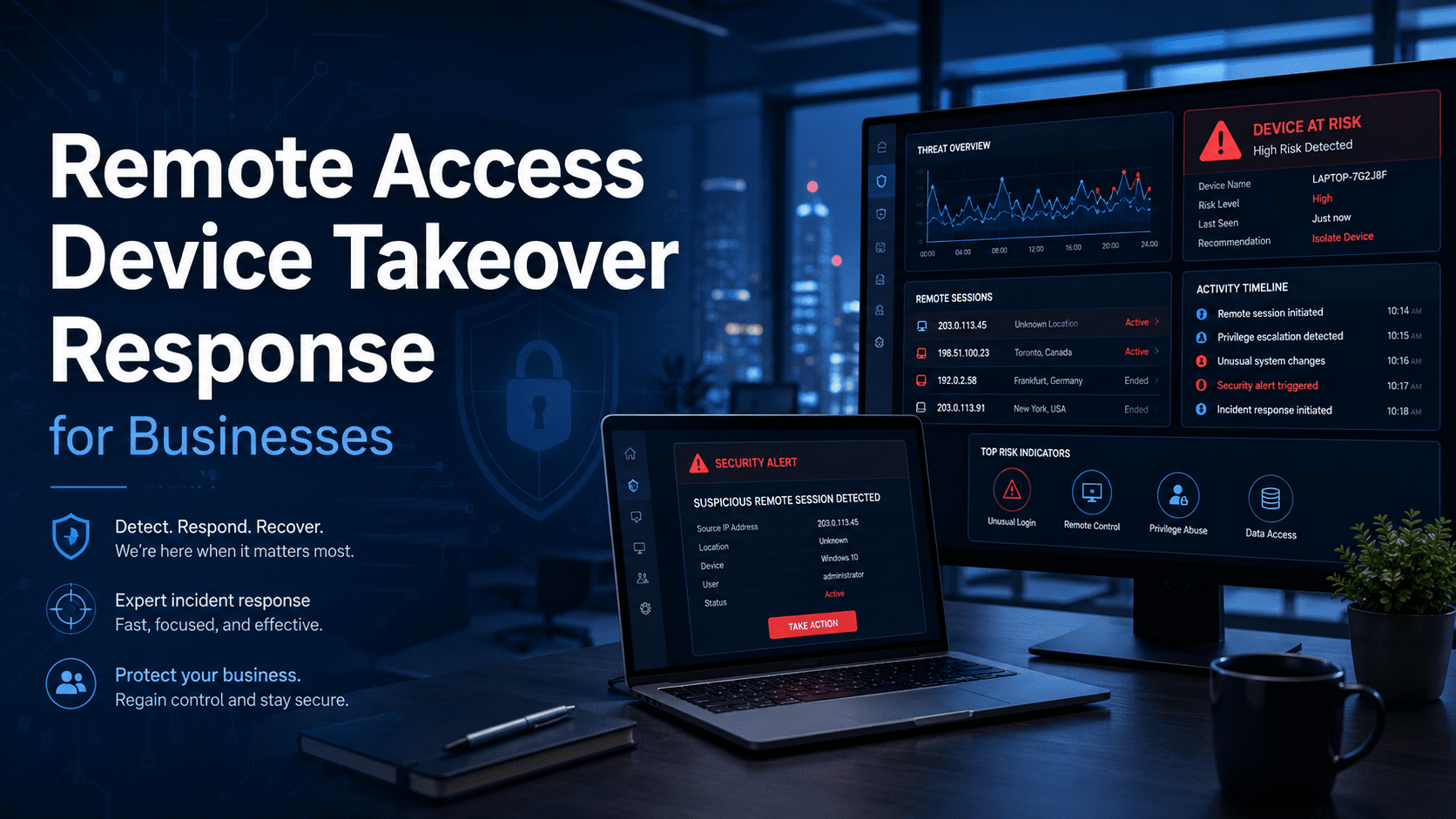
If you saw someone controlling your computer, if a remote access tool was installed unexpectedly, if a downloaded file did nothing, if a fake update screen appeared, or if something simply felt wrong, do not ignore it. Submit the incident response form now.
If the incident is no longer active and you want to strengthen your devices, identities, cloud accounts, passwords, endpoint protection, and monitoring, schedule a free meet and greet.
Remote access device takeover is when an unauthorized person gains the ability to view, control, monitor, or access a device remotely. A comprehensive remote access device takeover response can make a significant difference in outcomes.
This may happen through:
The attacker may use the access to control the computer, search files, transfer data, steal credentials, monitor activity, access email, open cloud applications, or install additional tools. Prompt and effective remote access device takeover response is critical to stopping further exploitation.
Remote access tools are not bad by nature. They are like a hammer. A hammer can build something useful. It can also be misused. Many remote access and remote management tools are legitimate business tools used by IT companies, managed service providers, internal IT teams, vendors, and support teams.
Examples may include:
The danger is not simply that one of these tools exists. The danger is when a threat actor tricks a user into installing, approving, or leaving remote access open without proper verification, authorization, logging, management, or security controls. Attackers like legitimate tools because they may not look like traditional malware. Basic antivirus may not always flag them as malicious because the software itself may be legitimate. The problem is how the software is being used.
Attackers often target people with access, influence, or lower technical confidence.
Common business targets include:
Attackers do not always need to target the most technical person. They target the person who can help them get to the highest-impact access. That may be banking, payroll, vendor payments, QuickBooks, email, cloud files, HR records, customer lists, passwords, or executive communication.
Remote access attacks can happen in two very different ways.
This is the scenario most people recognize.
You may see:
Sometimes attackers create a “smoke screen.”
They may display a fake Windows update or security repair screen that says something like:
“Do not shut down your computer. Updates are installing.”
The screen may look real, but it may be covering the attacker’s activity. Behind the scenes, they may be searching files, transferring data, opening browser sessions, exporting email, or installing additional tools.
This is more dangerous because the user may not see anything.
The attacker may:
In this scenario, the employee may say: “I clicked the link, downloaded the file, and nothing happened. I tried again, nothing happened, so I moved on.”
That “nothing happened” result should not be ignored. Sometimes the most dangerous attacks are quiet.
Many people know something felt wrong, but they wait.
They may think:
Waiting can give attackers more time. If something feels wrong, it probably deserves review. It is better to be safe than sorry. If you see remote control, if a download behaved strangely, if a caller pressured you, if a fake update screen appears, if a tool was installed unexpectedly, or if your computer behaves oddly, stop using the device for sensitive work and contact an IT or cybersecurity professional.
When an attacker is actively logged into your computer as you, they may have access to nearly everything your user account can access.
That may include:
If your computer is trusted by your business systems, the attacker may inherit that trust. That is why remote access device takeover is so serious.
Damage can happen quickly. The exact timeline depends on the attacker, the tool, the device, the security controls, the internet connection, and what the user has access to. But the general order often looks like this.
A skilled attacker may first look for the lowest-hanging fruit.
This can include:
Browser credentials, session tokens, and contact files are often small and quick to copy. If the attacker can grab these quickly, they may be able to continue the attack from another device even after the original computer is turned off, isolated, replaced, or cleaned.
The attacker may scan the device for useful information.
They may look for:
A skilled attacker may use tools or scripts to quickly identify files worth stealing.
The attacker may try to move beyond the device.
They may:
Forwarding rules can be especially impactful because they may allow the attacker to keep receiving messages after the first incident.
Some attackers act immediately. Others quietly observe.
They may monitor:
They may wait for the best moment to attack.
Some attackers may maintain access or use stolen data long after the original device issue.
They may use stolen credentials, tokens, contacts, email exports, or files to:
The original device may no longer matter if the attacker already stole the right access.
MFA is important. Every business should use it. But MFA is only as good as how it is configured, used, monitored, and protected. Attackers may try to bypass MFA by stealing the things that prove a user is already trusted.
For example, many websites allow users to select:
That saved trust can create a token or session that the browser uses to avoid asking for MFA every time. If an attacker steals that saved session or token, they may be able to act as if they are using the trusted device.
In plain English: The attacker may not need your MFA code if they can steal the proof that your browser already passed MFA.
That is why device takeover is so dangerous. When the attacker has access to the device, browser, and active user session, they may be able to steal access that a normal password reset does not fully fix.
Turning off or isolating the device may stop active control of that device. But it may not end the whole incident. If the attacker already stole credentials, tokens, files, email exports, contacts, or cloud access, they may continue the attack elsewhere.
They may use another computer to access:
This is why response must include both the device and the accounts connected to the device. Cleaning or replacing the computer is not enough if the attacker already stole access.
These steps are general guidance. They are not a replacement for professional incident response support.
If something feels wrong, treat it seriously. A strange download, fake update screen, unexpected support call, or moving mouse should not be ignored.
Do not use the suspected device for:
Use a separate trusted device if you must access critical accounts.
If you see active remote control or believe the attacker is connected, disconnect the device from the internet or network if safe. This may mean unplugging the network cable or turning off Wi-Fi. In some cases, shutting the device down may be appropriate to stop active misuse. The safest next step is to contact an IT or cybersecurity professional quickly so evidence and recovery steps can be handled properly.
Evidence may help determine what happened, what was accessed, and what needs to be secured.
Write down:
Use a clean, trusted device to reset critical passwords.
Prioritize:
If the same password was reused elsewhere, assume those accounts may be at risk.
For cloud accounts, password resets may not be enough. You may need to revoke active sessions and review MFA methods, recovery options, trusted devices, and connected apps.
If the incident may involve financial fraud, sensitive data exposure, customer/vendor targeting, ransomware, business interruption, or identity theft, contact your cyber insurance carrier if you have a policy.
If you are not a current EasyITGuys client, submit the incident response form or contact form so the situation can be reviewed and routed properly.
A caller claims to be from Microsoft, your internet provider, your bank, your printer company, your security company, or a software vendor. They may say your computer is infected, your network is unsafe, your account is being attacked, or your service will be disconnected. They ask you to install a tool so they can “help.”
An email appears to come from a customer, vendor, school, contractor, attorney, accountant, or known business contact. It links to an invoice, bid packet, Dropbox file, OneDrive file, Google Drive folder, or document download. You click it. A file downloads. It does not open. Nothing obvious happens. That download may have installed or launched the attacker’s access.
A website says your browser, PDF reader, video player, security tool, meeting software, printer driver, or business application needs an update. You install it. The attacker may now have remote access.
A user connects to public Wi-Fi at an airport, hotel, coffee shop, conference center, or shared workspace. The portal redirects to a fake login or download page. The user enters credentials or installs something to “continue.” This is one reason businesses should consider stronger remote work protections, such as VPN, ZTNA, SASE, secure DNS, managed endpoints, and clear travel security guidance.
A phishing page says the user must reset their password. It may look like Microsoft, Google, a bank, a payroll provider, a vendor portal, or a document-sharing site. The user enters credentials, and the attacker uses them to access accounts.
An attacker may pretend to be IT support, a software vendor, or a security team. This is especially dangerous if employees are not trained to verify support requests. EasyITGuys encourages businesses to use clear support channels, identity verification, and known support processes so staff know who to trust.
Remote access device takeover can affect both the business and the individual user. This is especially true when personal and business activity happen on the same device.
A compromised device may include:
After a deep compromise, some people and businesses have to rebuild large parts of their digital life.
That may include:
This can create tremendous downtime, stress, cost, and lost productivity. For some small business owners, the damage can feel overwhelming. This is exactly why proactive cybersecurity matters.
Many remote access attacks use tools that are legitimate. If the software is a real remote support application, basic antivirus may not automatically block it. The security problem may be context.
This is why businesses need more than basic antivirus. They need visibility, endpoint protection, managed detection and response, application control where appropriate, identity monitoring, user training, and clear support processes.
EasyITGuys helps businesses respond to remote access and device takeover incidents with structure and care.
Depending on the situation, we can help coordinate:
The goal is to secure the device, secure the accounts, understand the exposure, and reduce the risk of future attacks.
Once the immediate incident is contained, the business should improve its defenses.
Post-incident improvements may include:
Prevention is not perfect, but it can reduce risk, improve visibility, and help stop attacks sooner. An ounce of prevention is worth a pound of cure.
EasyITGuys provides remote-first nationwide response with onsite coordination available when needed.
We help businesses and organizations across many industries, with strong experience supporting:
Whether the incident started with a fake support call, public Wi-Fi portal, invoice download, phishing page, remote access tool, or suspicious screen movement, the response needs to be organized. Your business should not have to figure it out alone.
If you are an existing client and believe a business device was remotely accessed or taken over, call your dedicated SupportDesk IT line.
If you are not a current client and the incident is active or suspected, submit the incident response form or contact form so our team can review the situation and help coordinate next steps.
If the immediate threat is gone and you want to improve endpoint protection, remote access controls, identity security, monitoring, and long-term cybersecurity, schedule a free meet and greet.
Submit the incident response form now. If you are an existing EasyITGuys client, call your dedicated SupportDesk IT line.
Schedule a free meet and greet to discuss managed IT, endpoint protection, MDR, ITDR, identity security, remote access controls, cloud security, and long-term cybersecurity protection.
Use these related resources to continue learning and connect this page into the larger incident response hub.
Remote access device takeover is when an unauthorized person gains remote visibility, control, or access to a computer, laptop, server, or business device. The attacker may visibly control the mouse and screen, or they may connect quietly in the background.
Stop using the device for sensitive work. If active control is visible, disconnect the device from the internet or network if safe. Do not use it for banking, payroll, email, password resets, or business applications. Contact an IT or cybersecurity professional quickly.
No. Tools such as ScreenConnect, TeamViewer, AnyDesk, Splashtop, Chrome Remote Desktop, UltraVNC, and similar platforms can be legitimate business tools. The risk is when a threat actor tricks someone into installing or approving access, or when the tool is used without proper authorization and monitoring.
Yes. MFA is important, but attackers may try to steal saved browser sessions, cookies, or authentication tokens from a compromised device. If they steal proof that the browser already passed MFA, they may be able to access accounts without entering a new MFA code.
When attackers control a device as the user, they may access saved passwords, email, cloud files, QuickBooks, Teams, OneDrive, SharePoint, banking portals, payroll systems, vendor portals, network shares, and sensitive local files.
Not without guidance. Wiping the device too quickly may destroy important evidence needed to understand what happened, what was accessed, and whether cyber insurance, legal, or forensic review may be needed.
Yes. If the attacker already stole passwords, session tokens, files, contacts, or cloud access, they may continue the attack from another device even after the original computer is turned off, isolated, replaced, or cleaned.
Yes. EasyITGuys can help coordinate device isolation, evidence preservation, account lockdown, password and MFA review, endpoint review, Microsoft 365 or Google Workspace review, cyber insurance coordination, and long-term security hardening.
Prevention may include endpoint protection, managed detection and response, identity threat detection and response, remote access tool governance, application control, MFA review, security awareness training, public Wi-Fi guidance, and ongoing managed IT and cybersecurity support.
Ready to experience the EasyITGuys difference? Whether you’re dealing with a frustrating tech problem or need proactive IT management, we’re here to help. Contact us today for:
For more information, view more pages on our website, chat with us, email us, or call us at (651) 400-8567. Let us show you how we Make IT Easy!