
Upgrading your computer might sound intimidating, but it’s simpler than most people expect. This guide walks you through safe, step-by-step methods to move from Windows 10 to Windows 11 while keeping your files, applications, and settings intact.
Microsoft has officially announced that Windows 10 support will end on October 14, 2025. After this date:
No more security or maintenance updates will be released.
Technical support from Microsoft will cease.
New hardware and software may no longer support Windows 10.
If you continue using Windows 10 beyond that date, your system will become increasingly vulnerable to cyber threats, and some apps may stop working properly.
💡 Tip: If your PC is critical for work or business, plan your upgrade early to avoid downtime or security risks.
If your computer runs Windows 10 version 22H2 and is fully updated and activated, you can perform a free in-place upgrade to Windows 11.
An in-place upgrade reinstalls Windows while keeping your files, programs, and settings. The system will automatically reactivate Windows 11 after installation.
However, the upgrade occurs in two phases:
You’ll first move from Windows 10 to Windows 11 version 24H2.
Then, the enablement package (eKB) will bring you up to version 25H2 — the latest Windows 11 release.
If Windows Update isn’t functioning properly, you can use the Installation Assistant to manually perform the upgrade.
⚠️ Important: Always create a full backup of your system before upgrading. Use tools like Macrium Reflect, Windows Backup, or OneDrive to protect your data.
Follow these steps to upgrade through Windows Update:
Open Settings on your Windows 10 device.
Navigate to Update & Security → Windows Update.
Click Check for updates.
When prompted, select Download and install.
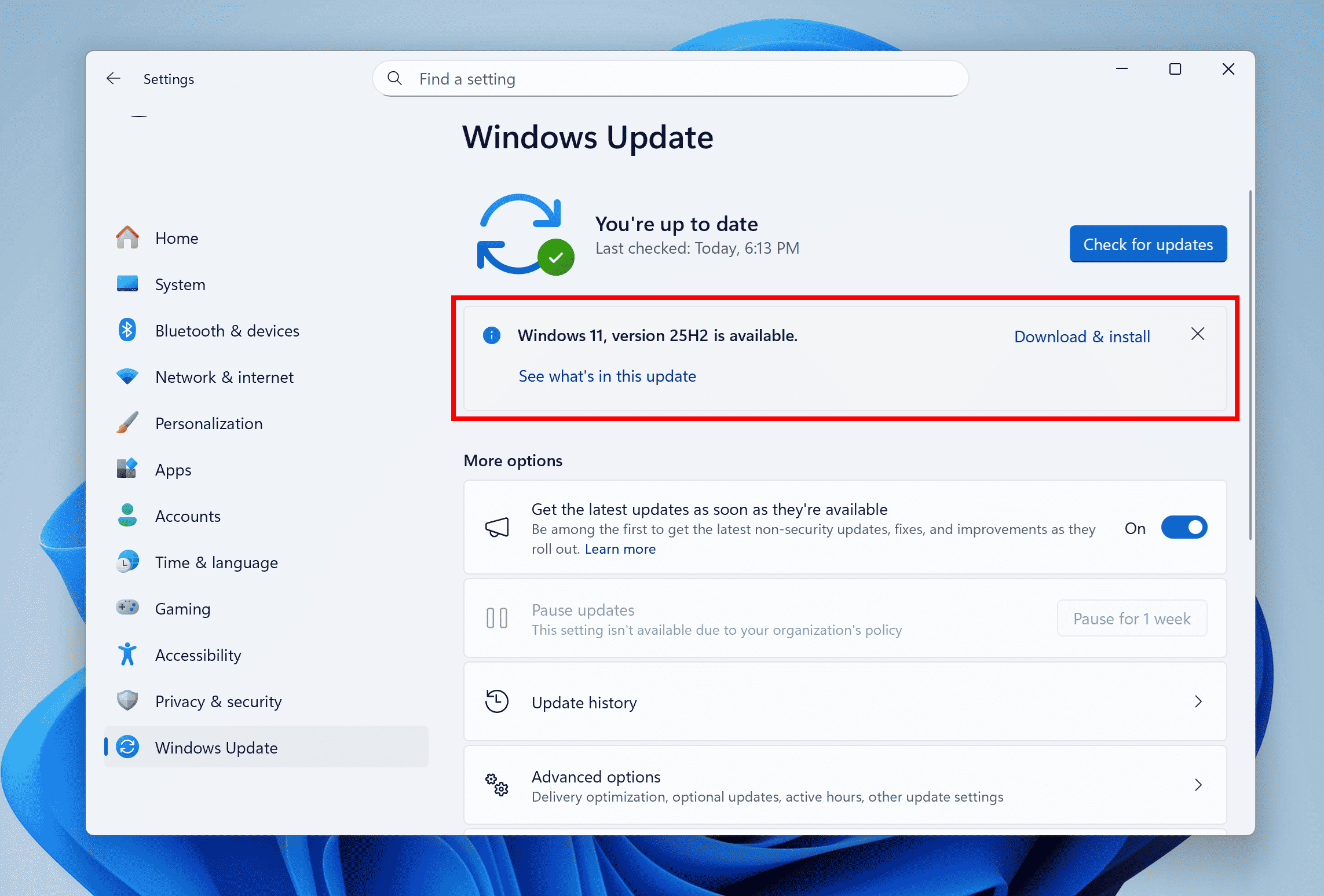
Click Restart now once installation files are ready.
After your PC reboots into Windows 11:
Open Settings → Windows Update again.
Click Check for updates and Download and install version 25H2.

Restart your device to complete the process.
Your PC will first install Windows 11 version 24H2, then automatically update to 25H2 through the enablement package.
If you encounter issues with Windows Update, the Windows 11 Installation Assistant offers another easy path.
Visit the Microsoft Windows 11 Download page.
Under “Windows 11 Installation Assistant,” click Download Now.
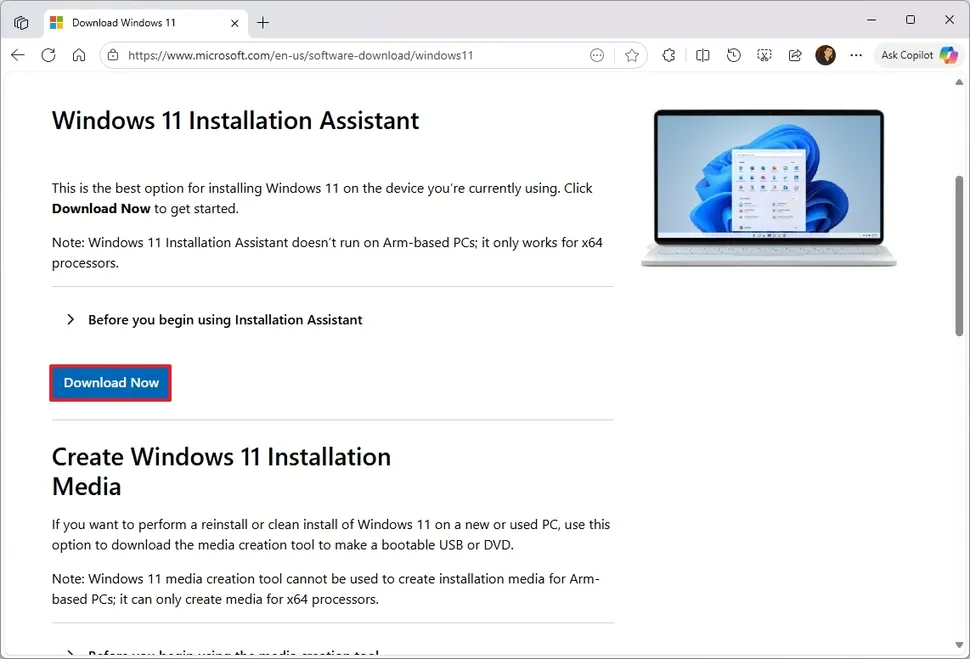
Run the Windows11InstallationAssistant.exe file.
Follow the on-screen prompts and click Accept and Install.

The tool will download and install the latest Windows 11 version while preserving your apps, files, and settings.
If your system feels slow or cluttered, a clean install can offer the best performance.
This process erases your drive and installs a fresh copy of Windows 11.
You’ll need to:
Back up all personal data.
Create a bootable USB using the Media Creation Tool.
Boot from the USB and perform a fresh installation.
This option is ideal for:
PCs with significant performance issues.
Systems previously infected with malware.
Business users preparing a standardized, secure build.
Check your hardware using the PC Health Check app. It verifies whether your device meets requirements like TPM 2.0, Secure Boot, and CPU compatibility.
Update drivers before upgrading, especially for graphics, storage, and networking.
Disable antivirus temporarily during installation (it can be re-enabled after the upgrade).
Ensure at least 64GB of free space on your system drive to prevent upgrade failures.
For organizations managing multiple PCs, Microsoft offers Windows Update for Business, Intune, or Endpoint Manager to centrally manage upgrades.
Businesses that can’t immediately upgrade due to legacy software or hardware may enroll in Microsoft’s Extended Security Updates (ESU) program, providing up to three years of additional updates (paid) after 2025.
October 14, 2025. After this, there will be no updates or official support.
Yes. As long as your Windows 10 is activated and your hardware meets system requirements, the upgrade is free.
No, your personal files, apps, and most settings remain intact with an in-place upgrade. Still, always make a backup before starting.
64-bit processor with 1GHz or faster, 2+ cores
4GB RAM or more
64GB storage or more
TPM 2.0
Secure Boot capable
DirectX 12-compatible graphics card
Download and run the PC Health Check app from Microsoft. It will confirm whether your system supports Windows 11.
You’ll first install version 24H2, then apply the enablement package (eKB) to reach 25H2.
The Installation Assistant can install 25H2 directly.
Most Windows 10 apps work perfectly in Windows 11. However, older peripherals may require driver updates or replacements.
Yes. Windows 11 includes built-in protections like:
Hardware-based isolation and secure boot
Enhanced ransomware protection
Windows Hello for biometric sign-in
Smart App Control and improved Defender integration
Version 25H2 focuses on:
AI features like Copilot integration
Enhanced File Explorer performance
Energy-saving options for laptops
Simplified system settings and updated visual design
Yes. Within 10 days, you can revert via Settings → System → Recovery → Go back (as long as old system files remain).
You can still upgrade for free, and you’ll retain your edition (e.g., Windows 10 Pro → Windows 11 Pro).
Enterprises using centralized management can deploy upgrades through Microsoft Intune or WSUS.
Home and Pro editions: 24 months
Enterprise and Education editions: 36 months
The upgrade typically takes 30–90 minutes, depending on your internet speed and system performance.
You can:
Stay on Windows 10 temporarily.
Enroll in the Extended Security Updates (ESU) program.
Replace or upgrade hardware (CPU, TPM module, or motherboard).
Upgrading from Windows 10 to Windows 11 is a smart move for better security, stability, and performance.
With free upgrade paths, modern features, and improved design, Windows 11 positions users for the future of productivity — especially as Windows 10 nears retirement.
If you’re unsure about compatibility, check your PC early and plan ahead to avoid last-minute issues.


