
Windows 11 is very similar to Windows 10 overall, but there are a few differences in how things look and work. This guide will help you transition smoothly.
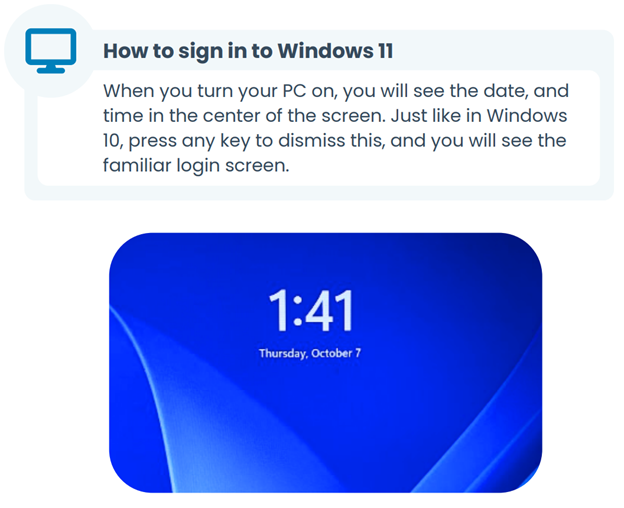
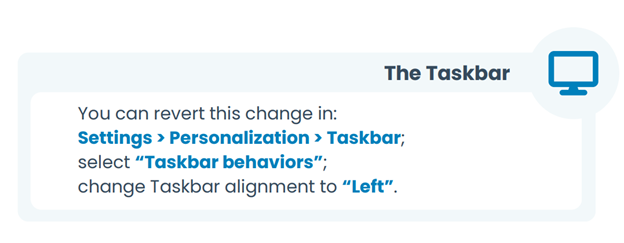
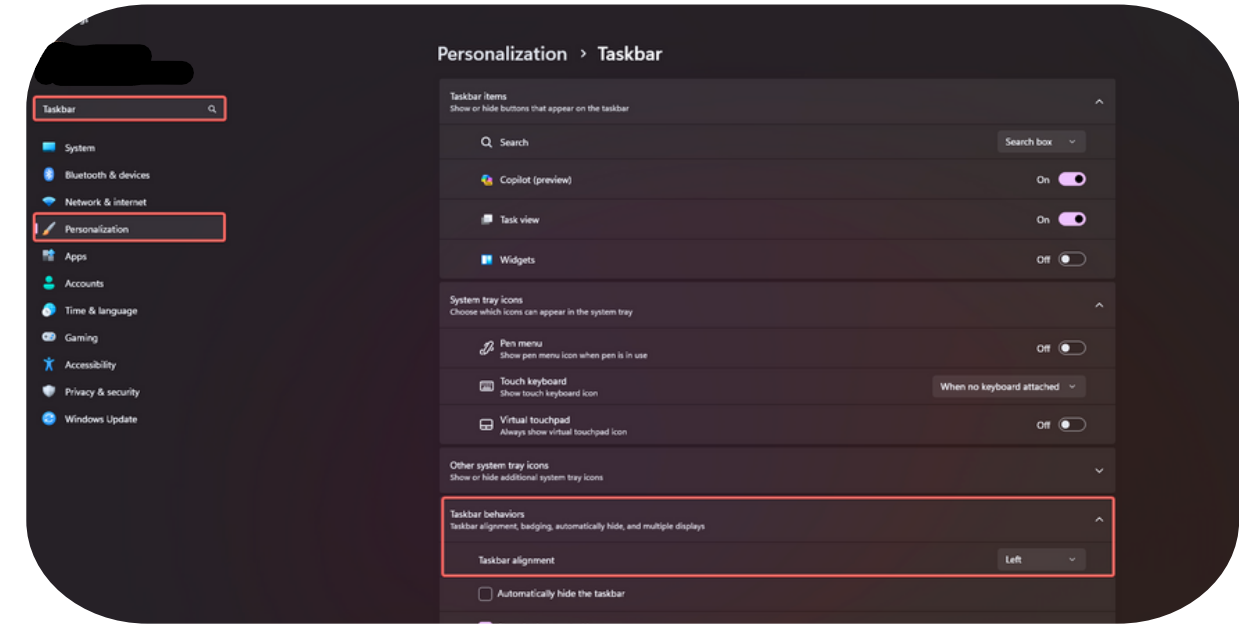
The first thing you may notice after signing in is the taskbar. By default, it is aligned to the center instead of the left side of the screen.

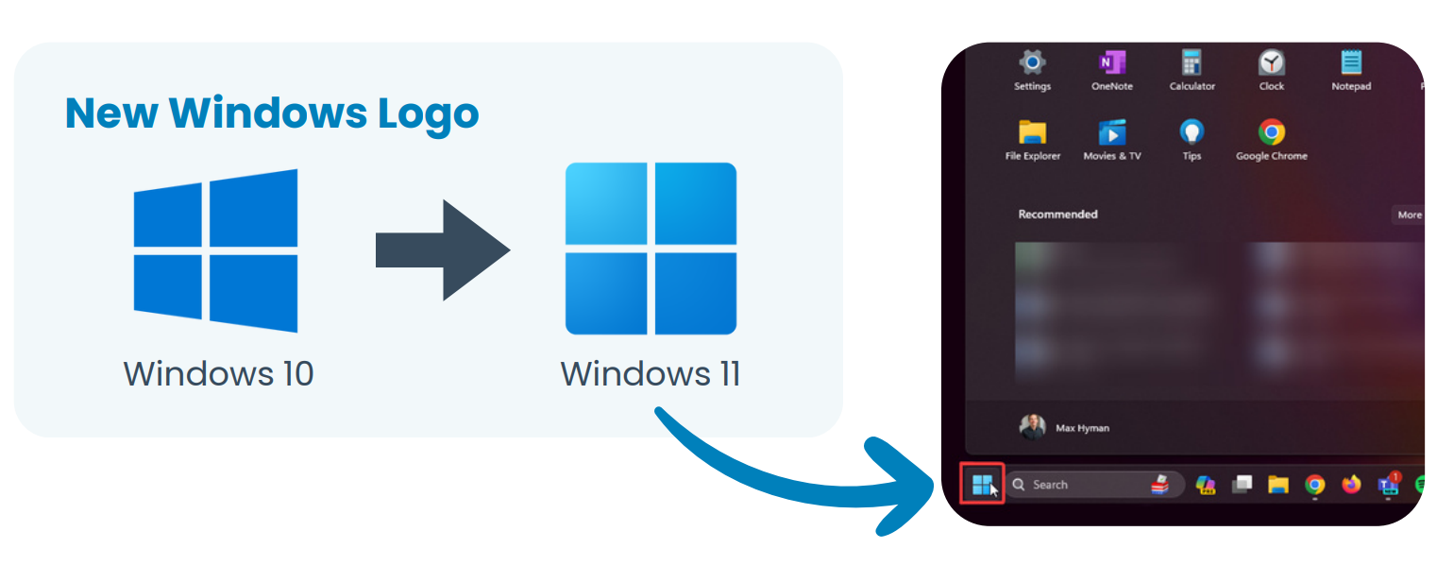
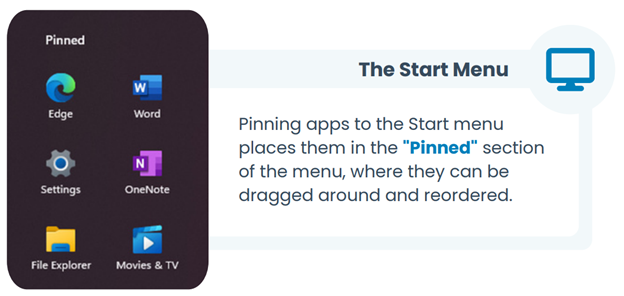
Windows 11 has a new Start Menu with the Windows logo as its icon. Pinned apps appear at the top, and the power button is now at the bottom right. It gives you options like Sleep, Shut down, or Restart.

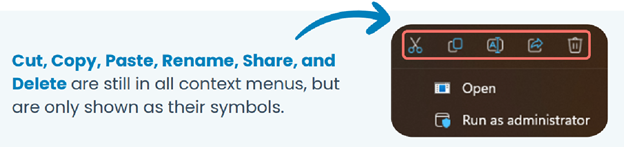
Right-click menus still exist, but they look different. Common actions (cut, copy, paste, rename, delete) appear as icons. For more options, select ‘Show more options’ or press Shift while right-clicking.

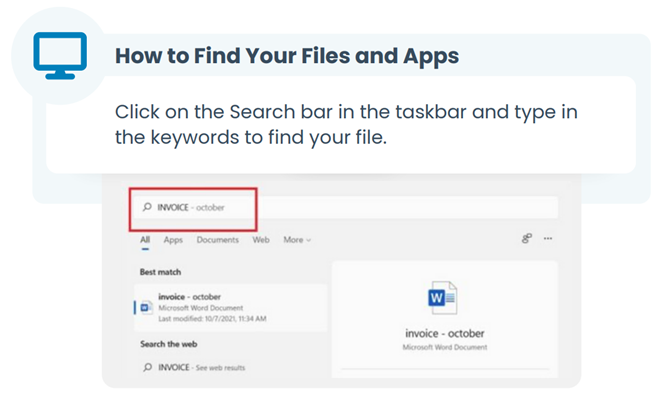
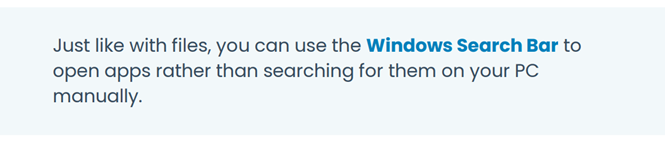
Use the Windows Search bar to find files or apps quickly. You can also use the Start Menu > All apps to browse programs alphabetically.


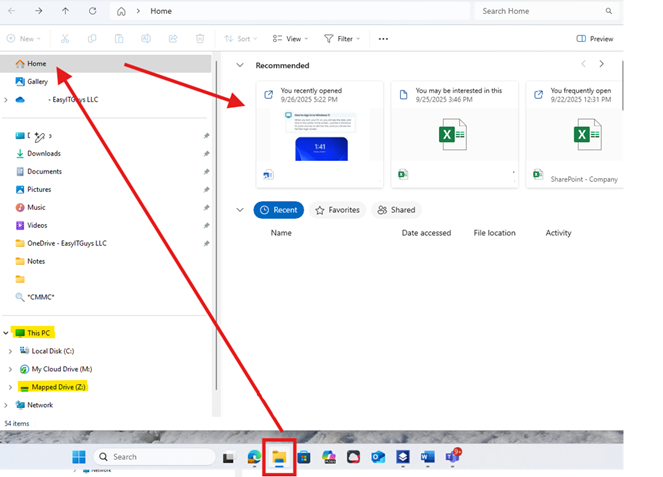
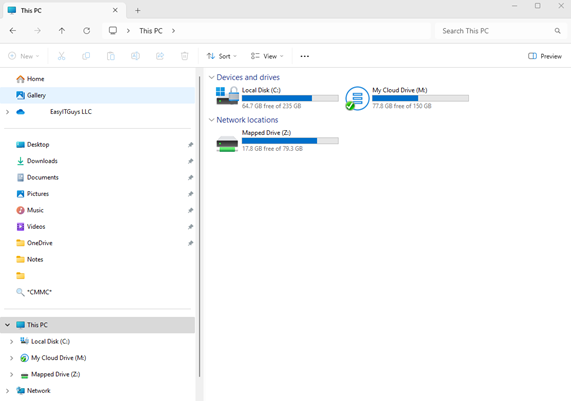
Mapped drives look very similar. To get to mapped drives, Sharepoint (or OneDrive), click the folder icon in the task bar, then click “This PC”. You will also see your folders on the left sidebar.
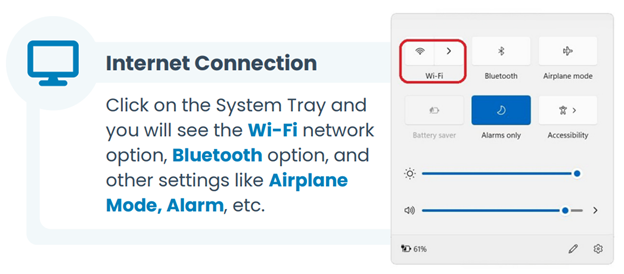
On the taskbar, click the system tray (network, volume, battery icons). From there, connect to Wi-Fi or manage other settings like Bluetooth or Airplane Mode.

Q: Why do we need to upgrade to Windows 11?
A: Microsoft will stop supporting Windows 10 on October 14, 2025. After that date, it will no longer receive security updates, making it unsafe for company use. Windows 11 provides stronger protection, better performance, and improved tools to support our work.
Q: Will my computer be upgraded or replaced?
A: If your computer meets the requirements for Windows 11, IT will upgrade it. If it does not, it will be replaced with a newer system. IT will notify you directly with a popup or message about your specific device.
Q: Will my apps still work?
A: Yes, nearly all apps will continue to work. Microsoft reports that 99.7% of applications compatible with Windows 10 also work with Windows 11. If you encounter an issue, IT will work with you to resolve it.
Q: What improvements can I expect with Windows 11?
A: You’ll notice faster boot times, smoother performance, stronger security, and features like:
Snap layouts to organize your windows.
A redesigned File Explorer for quicker navigation.
Built-in integration with your phone for calls, texts, and notifications.
Q: What if my work is interrupted during the upgrade?
A: IT will schedule upgrades and replacements to minimize disruption. If you run into issues after the upgrade, contact IT immediately so they can resolve them.
Q: What is expected of me during this process?
A: The expectation is that all end-of-support Windows 10 devices will be upgraded or replaced before October 14, 2025. While there may be rare exceptions, it’s important that everyone cooperate with IT and help support this initiative. Keeping the company secure takes all of us working together.
If you’d like additional resources, please visit our website and the video links below. You can also visit the IT Productivity Training Portal for tracked trainings under your user profile.
Windows 11 Guide for Beginners: Download PDF
Core Training (19 Minutes)
Deep Dive Video (45 minutes)
To: All Staff
From: CEO / Management
Subject: Windows 10 End of Life – Transition to Windows 11
Microsoft has announced that support for Windows 10 will officially end on October 14, 2025. After that date, Windows 10 will no longer receive security updates, which means it will become unsafe to use in our environment. To keep our systems secure and reliable, all computers must transition to Windows 11 before this deadline.
We have already been upgrading compatible computers to Windows 11, and many of you are now working on the new system. For devices that cannot support Windows 11 due to hardware requirements, IT will retire and replace them with newer machines. If your device is affected, you will see a notification popup with instructions, or IT will reach out directly to coordinate your upgrade or replacement.
Why this matters:
Security. Windows 11 includes stronger protections, with studies showing up to 85% fewer security incidents on upgraded devices.
Productivity. Features like Snap layouts, a redesigned File Explorer, and phone integration make work faster and easier.
Compatibility. 99.7% of apps that work on Windows 10 also work on Windows 11, minimizing disruption.
Performance. Expect faster boot times, smoother performance, and better battery life on supported devices.
Our expectation: All Windows 10 devices that are at end of service or support must be updated or replaced by the October 14, 2025 deadline. While there may be rare exceptions, it is critical that everyone helps support this initiative. It takes every staff member working together to keep the organization secure in today’s digital age.
Resources to help you adjust:
A short video and a longer in-depth video from IT on Windows 11 basics.
An attached PDF guide covering everyday tasks such as logging in, using the Start menu, File Explorer, network drives, and apps.
The Windows 11 Beginner’s Guide page: easyitguys.com/docs/windows-11-guide-for-beginners — includes training videos and helpful links to get started.
We know this is a big change, and your cooperation is appreciated. By completing this transition together, we will ensure the company remains secure, reliable, and ready for the future.
Sincerely,
CEO / Management
 If you have any questions or run into any issues while using Windows 11, please contact the support desk team for assistance. We’re here to help make your transition to Windows 11 as smooth as possible. Enjoy your new Windows experience!