
Before you start:
You must be signed in with an administrator account.
Uninstalling Acronis will stop backups and protection on this device.
Some devices have uninstall protection enabled. If you cannot uninstall, your IT provider may need to temporarily allow it.
Sign in as an administrator.
Open Control Panel → Programs and Features (or Settings → Apps → Installed apps).
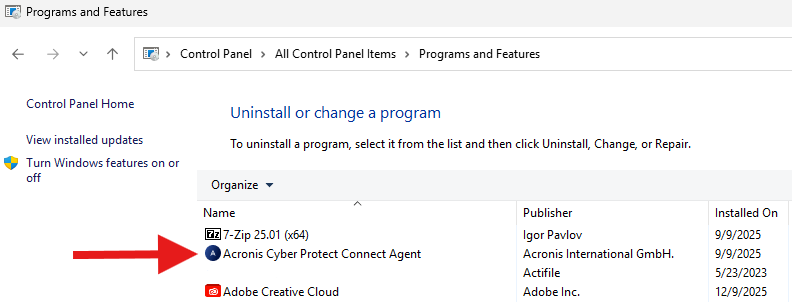
Find Acronis Cyber Protect or Acronis Cyber Protection Agent.
Click Uninstall.
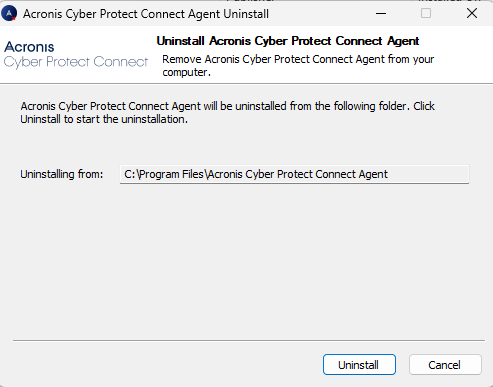
Restart the computer.
Sign in as an administrator.
Open Command Prompt as Administrator.
Run this command:
cd "C:\Program Files\Common Files\Acronis\BackupAndRecovery"
Uninstaller.exe --quiet --delete-all-settings
Use this only if Acronis will not uninstall normally. This is a deeper removal and can break existing backup chains. If you need this method, contact your IT provider for the correct utility and steps. If you want to try yourself, you can download it from here: 40366:Acronis Cleanup Utility
Open the Acronis installer file (.dmg).
Inside the mounted disk image, double click Uninstall.
Enter your macOS administrator username and password when prompted.
Confirm the uninstall.
Open Terminal.
Run:
sudo /Library/Application\ Support/BackupClient/Acronis/Cyber\ Protect\ Agent\ Uninstall.app/Contents/MacOS/AgentUninstall /confirm /purge


