How Users access the Portal #
You and your staff can go to the IT Portal 24/7/365. Here is the link: Client Portal (Home Users)

Navigating the Customer Portal (Non-Admin Group) #
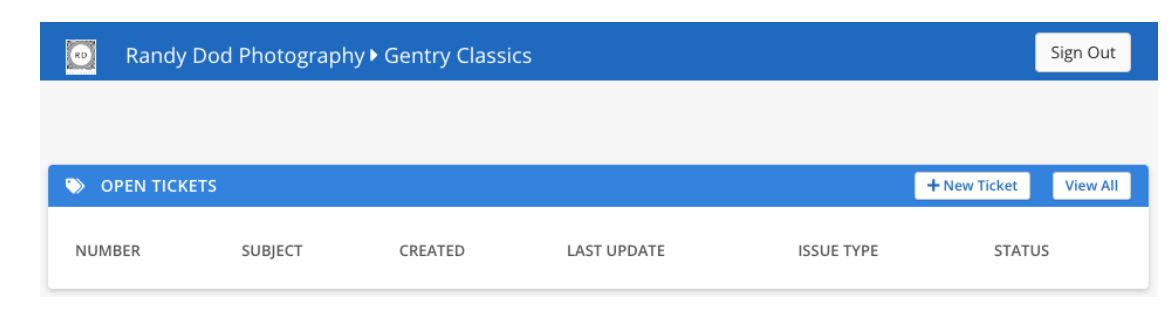
After logging into the portal, based on their portal user permission group, you will see an overview of the portal. The below is an example of what a non-admin experience where permissions are limited to accessing the portal, creating new tickets, and reviewing existing tickets (open or closed).
Navigating the Customer Portal (Admin Group) #
After logging into the portal, an admin user will all details available in the account.
Top bar and Account Overview #

- Customer name: After going to another screen, such as clicking View All, click the name to return to this top level portal screen.
- Password Reset: Sends a password reset email to the your email.
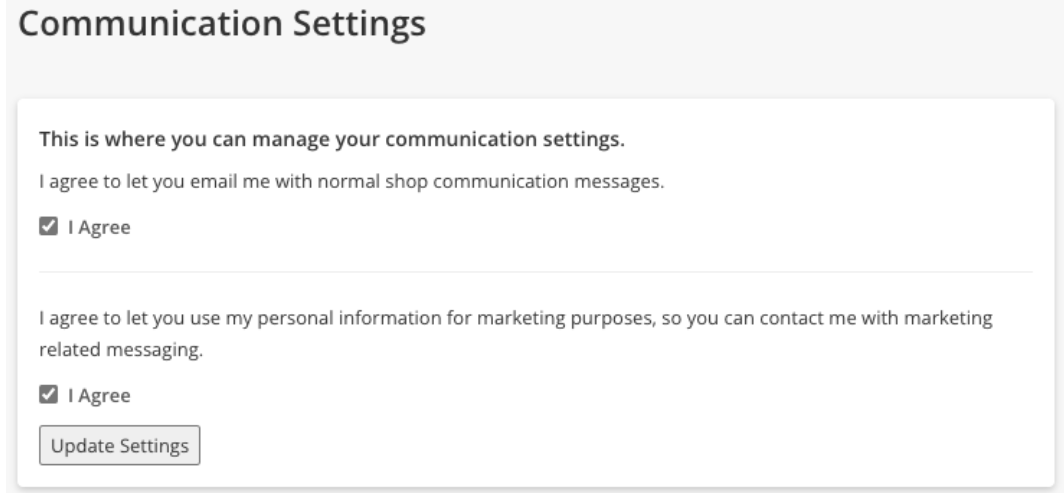
- Privacy Settings: Opens a Communications Settings page where you can set marketing preferences.
- Sign Out: Logs out the customer and returns to the Sign In screen.
- Account Overview: This section is visible by default
- Shows their Invoice Balance, Prepay Hours Balance, and Store Credit Balance.
- Stored Payment Options: Shows their stored credit cards or ACH accounts. Click Manage to add new ones and delete existing ones. Note that the actual credit card or ACH info NOT STORED within this portal or directly by EasyITGuys (it’s held at the payment processor).
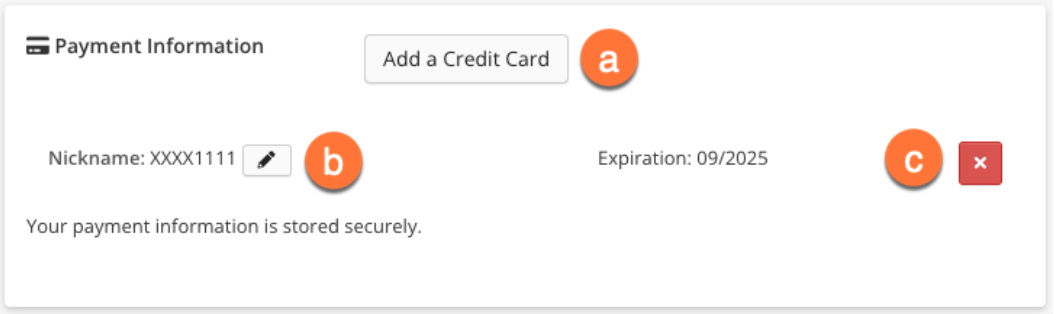
a) Click to add a new card. After adding it, you can change its nickname and displayed expiration date.
b) Click the pencil to edit the payment method’s nickname. This does not edit the actual card data.
c) Click X to delete the payment method. If you need to edit an existing method, you will need to delete it and re-add it.
Open Tickets #
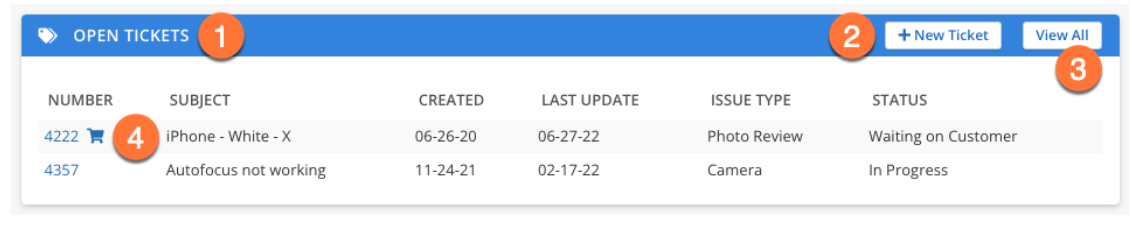
- Section is visible by default.
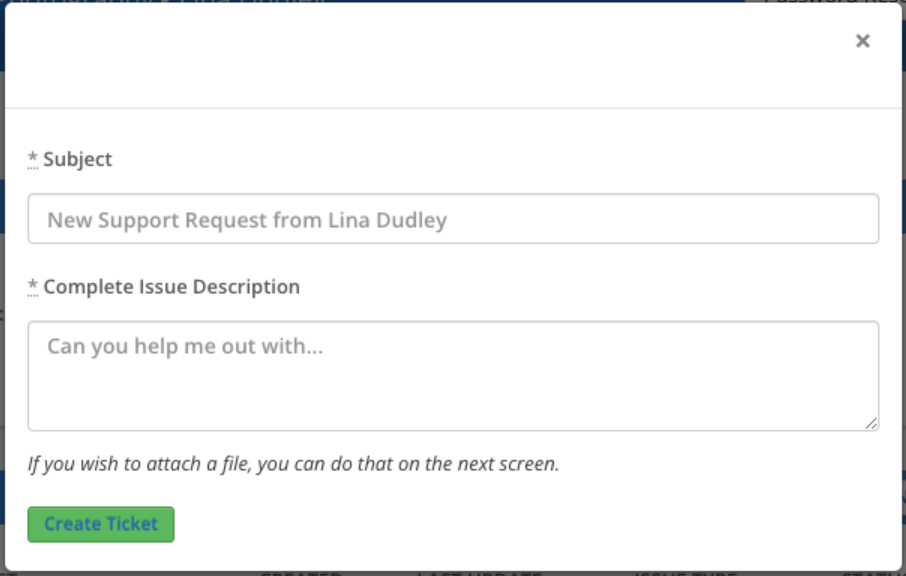
- Allows you to add a new ticket.
- View All opens the Your Tickets screen with all items and additional search criteria for that module.
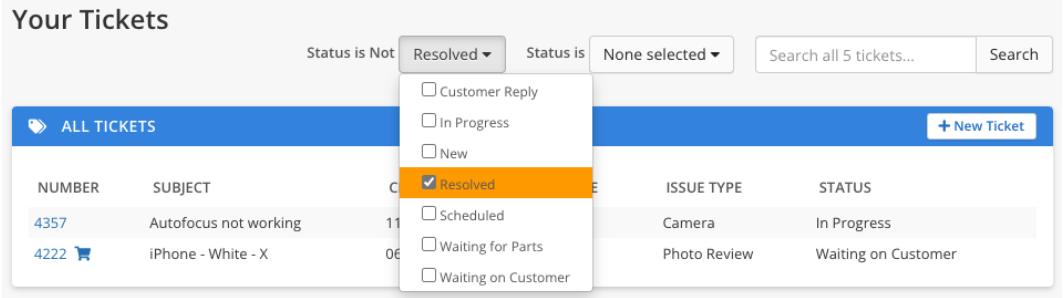
- Click a ticket number to view the ticket (see next section). Shopping cart icon indicates ticket was invoiced. Hover over the icon to see the invoice number, and click to view the invoice.
Ticket Detail #
When you click a ticket number, it opens the Ticket Detail screen where you can do the following.

- View a downloadable, printable PDF of the ticket.
- Click to add a new file attachment to the ticket, whether documents or images, that are relevant to the ticket.
- Click an attachment filename to view the attachment.
- Enter a new comment in the Message field, then click Add Note to Ticket to communicate to us without sending emails.
- A log of all public ticket comments and communication in reverse chronological order. This lets you view communication both to your support team and from you.
Open Invoices #

- Section is visible by default for all admin users.
- Opens a Make a payment screen that lists all invoices and lets you enter their credit card info or select an existing payment profile if you have one. You can also adjust the payment amounts of each invoice.
- View All shows both paid and unpaid invoices, similar to what this section shows, but with searching and payment filtering tools.
- Click an invoice number or your name to open the Invoice Details screen.
- Pay Now also opens the Invoice Details screen
Invoice Details #

- Both PDF buttons display a downloadable, printable PDF of the invoice.
- If you’d like to pay with PayPal (financing or other preference), click the paypal button.
- Likewise, if you pay by credit card, click “Pay with Credit Card”.
- Click the address to view it in Google Maps.
Other Abilities in the portal #
- Recent Payments:
- Estimates:
- Attachments:
- Assets: