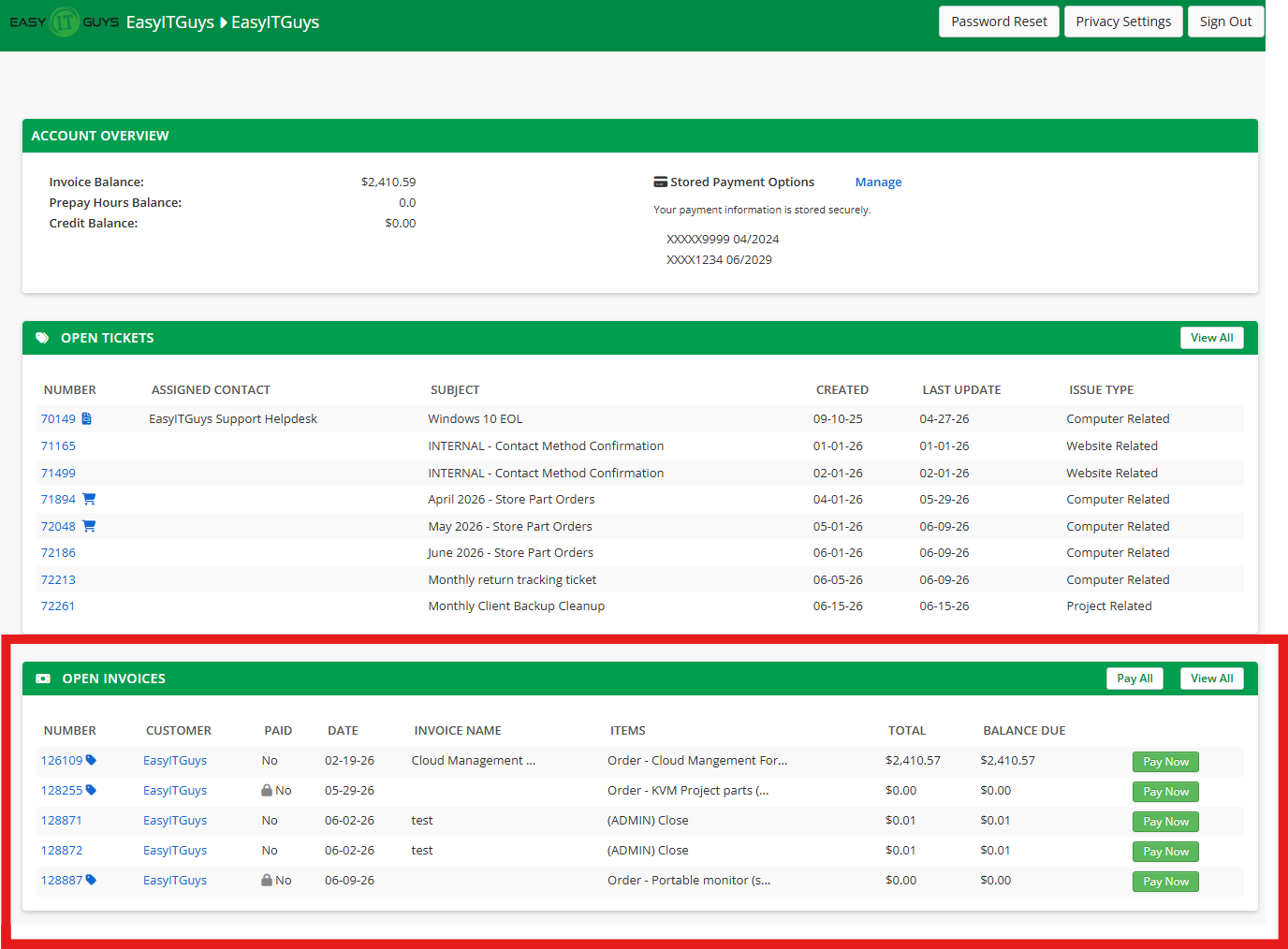
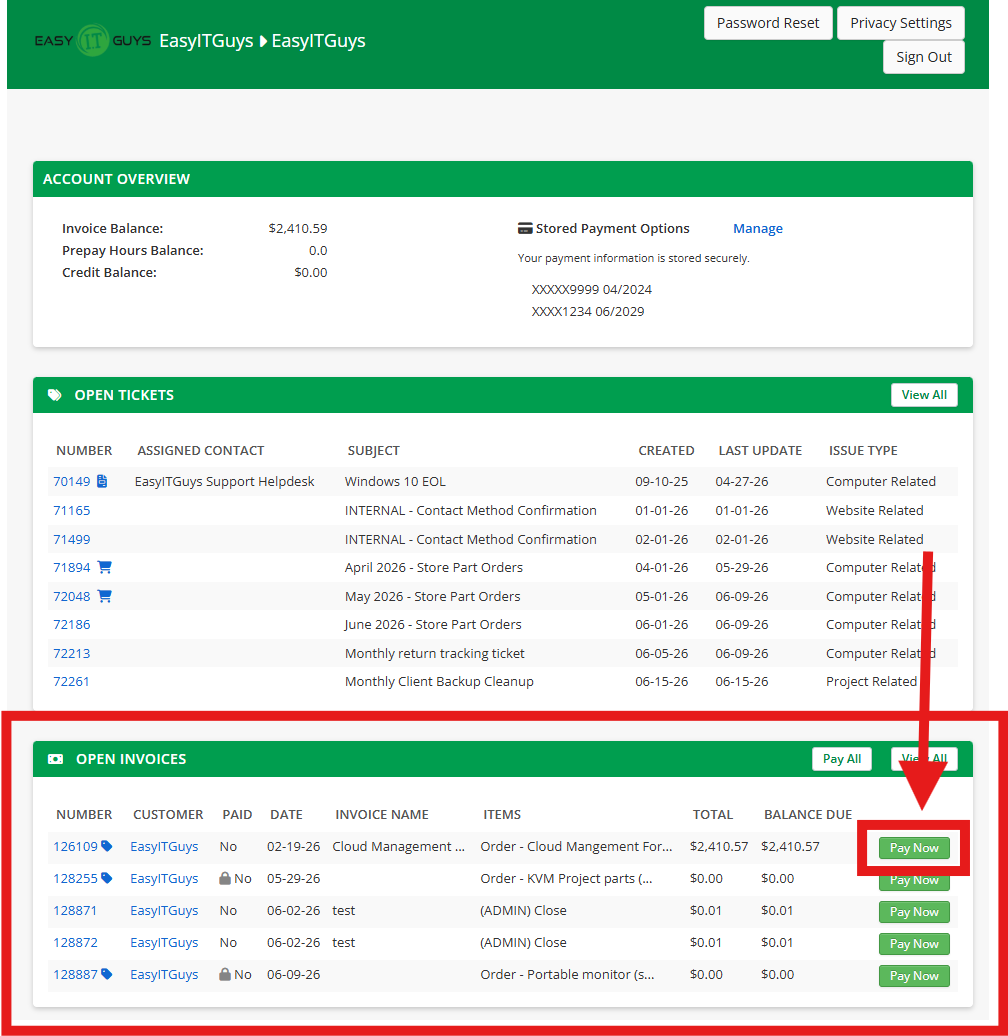
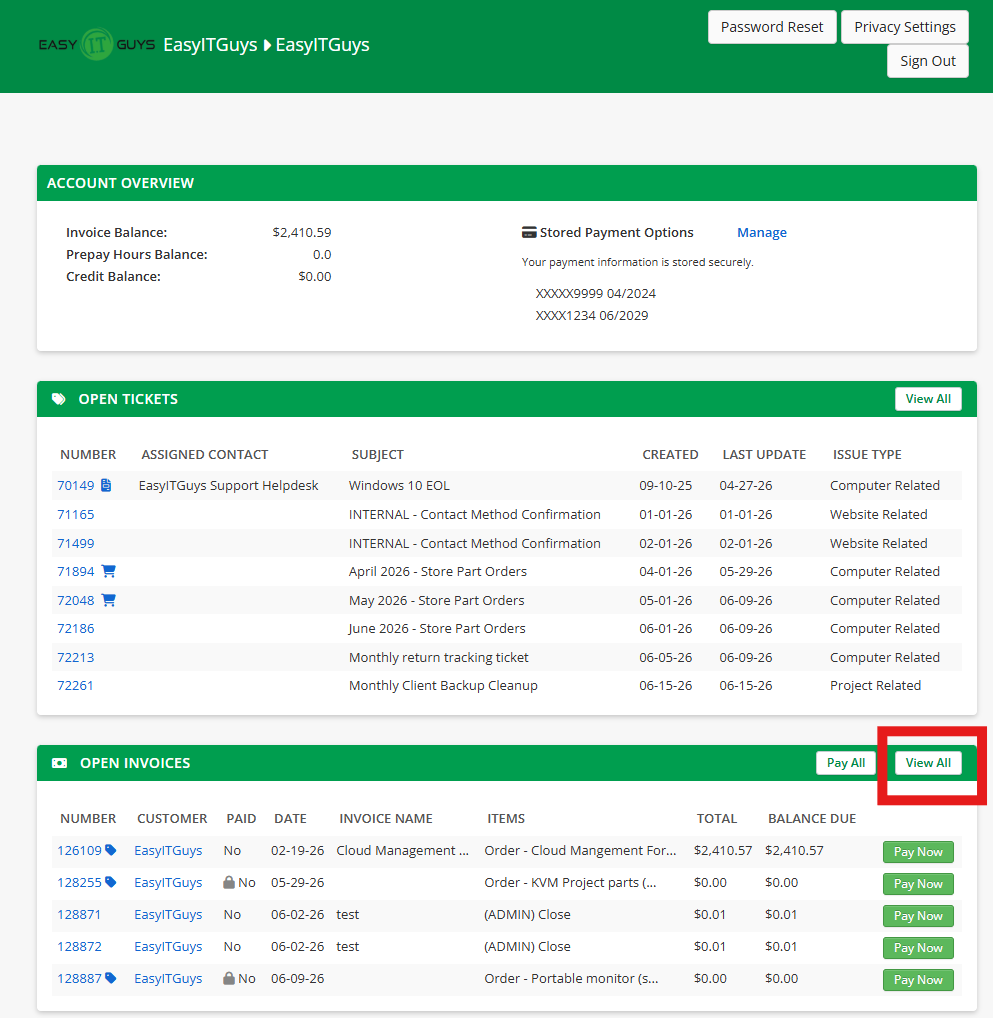
After you’re logged into the accounting portal, find the “Open Invoices” section.
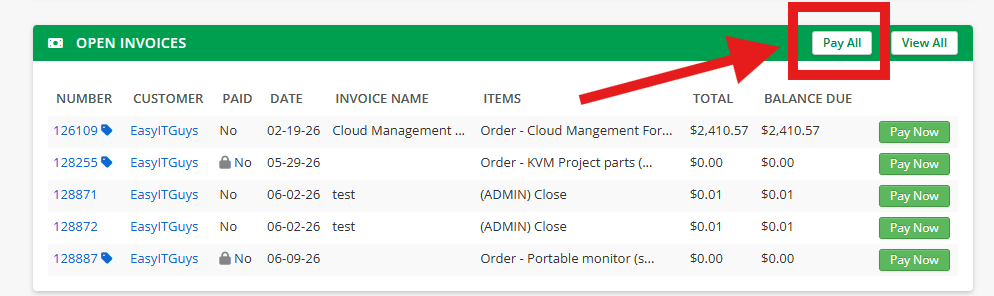
If you’d like to pay ALL open invoices at one time, click the “Pay All” button.
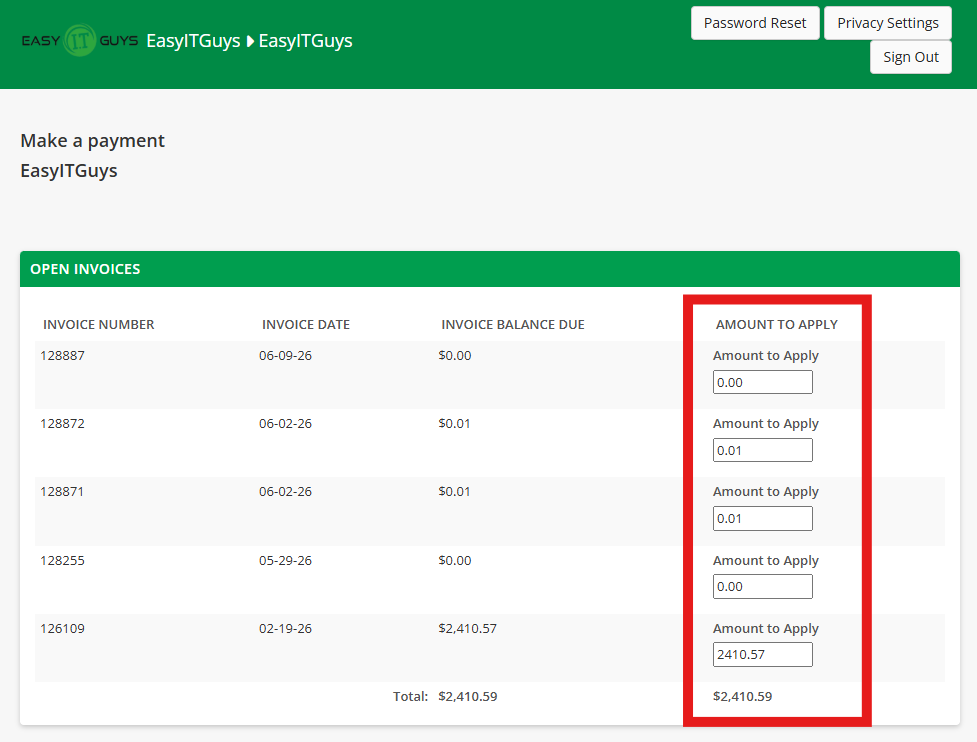
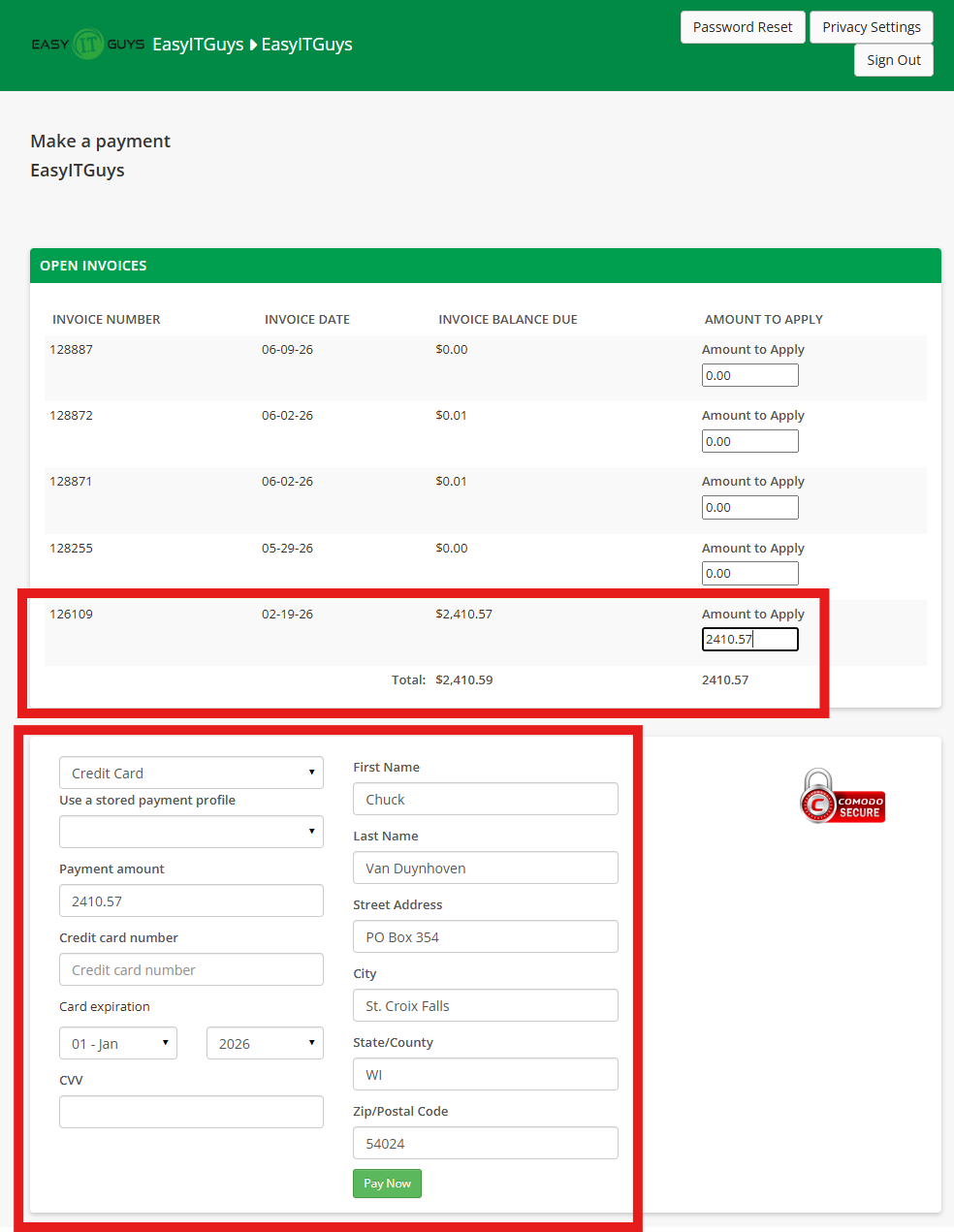
Confirm the amounts you want to pay, adjust as needed.
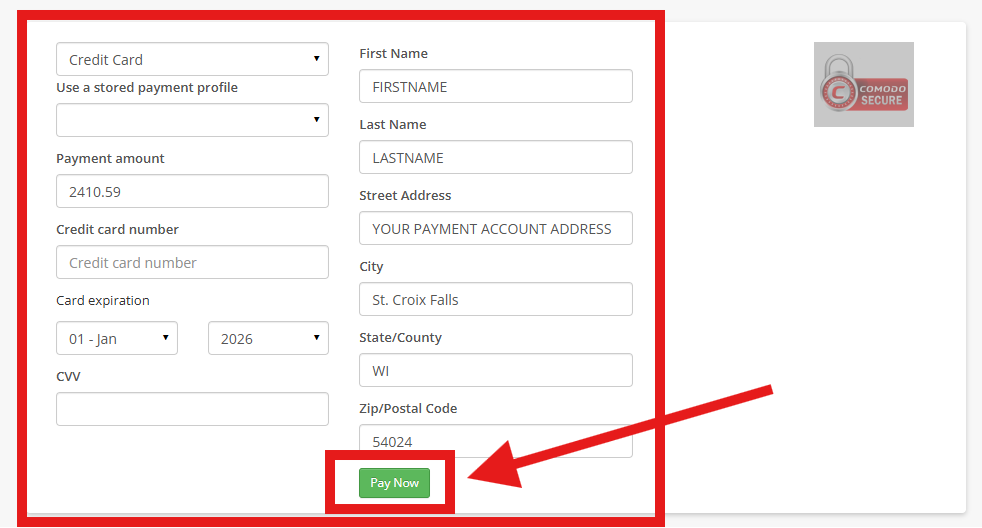
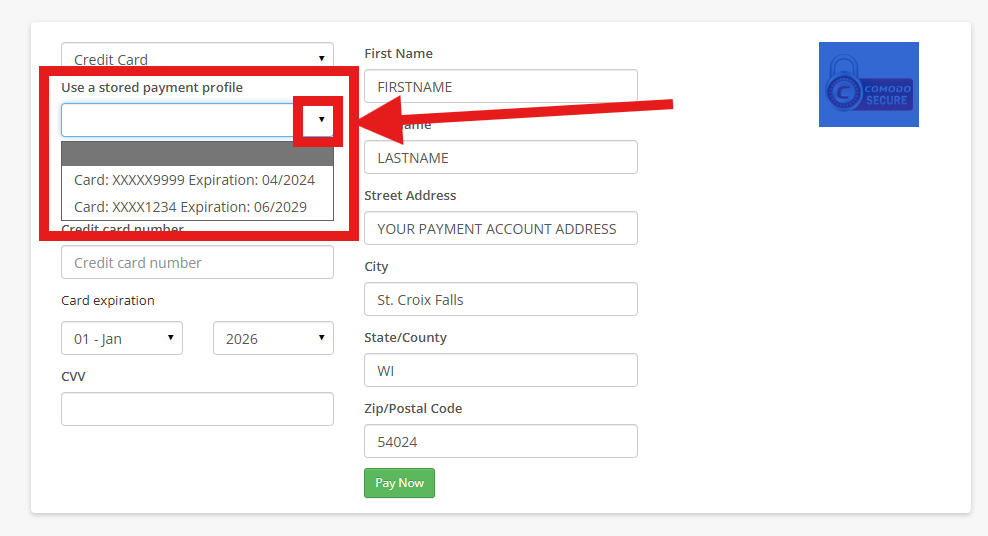
If you want to pay with a one time use credit card, add your card and billing details securely, then click “pay now”.
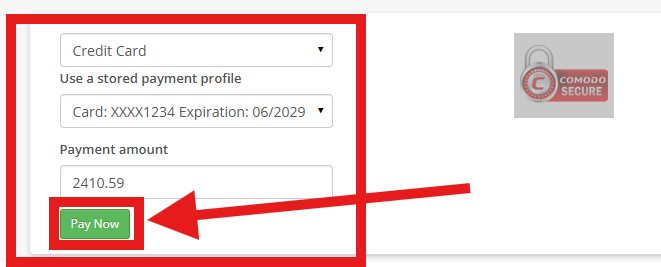
You can also select “Use a stored payment profile” option to select a previously stored payment method. Confirm the payment amount, then click “Pay now”.
You can easily make a payment here by clicking directly on the “pay now” button on the invoice you can see. Any paid invoices will not have this button.
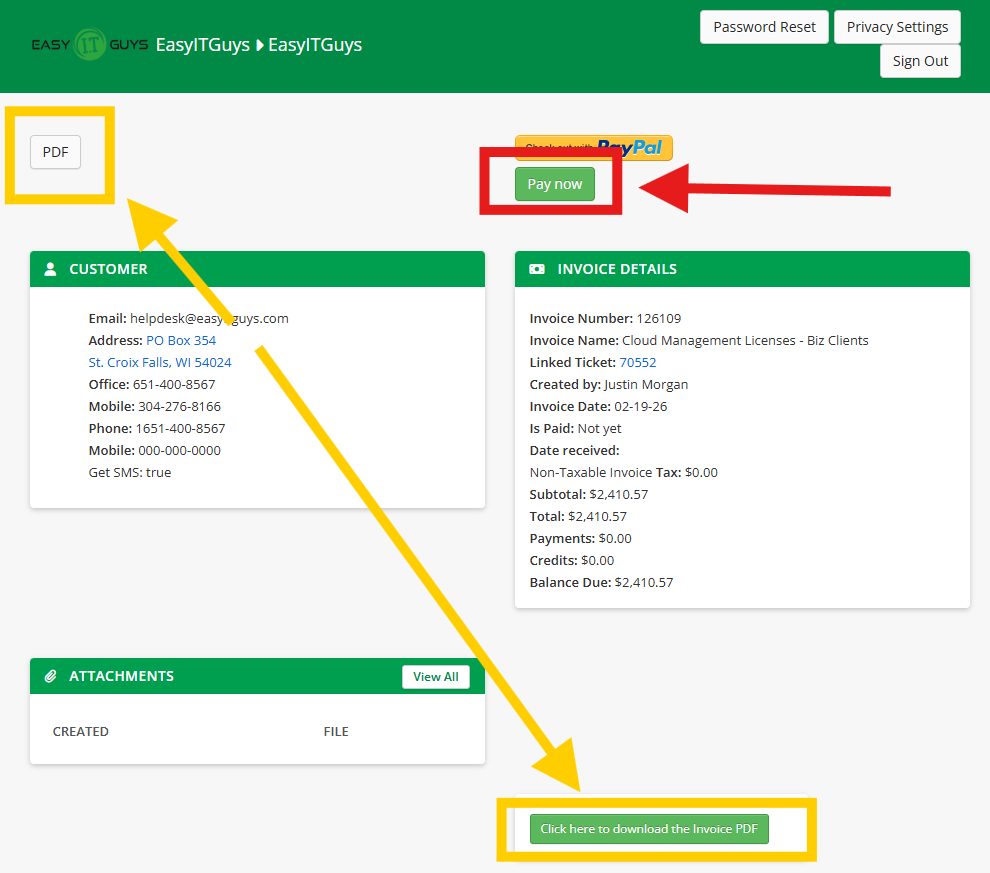
On the next page, you can now see the “PDF” option to view or download a copy of the invoice at any time (see yellow arrows). If you want to pay, click the “Pay now” button (see red arrow)
You will be taken to the standard “Make a Payment” screen with ONLY the invoice you selected marked for a payment amount. Select your p[ayment method (one time use credit card or stored payment methods). Click “Pay now” to complete the process.
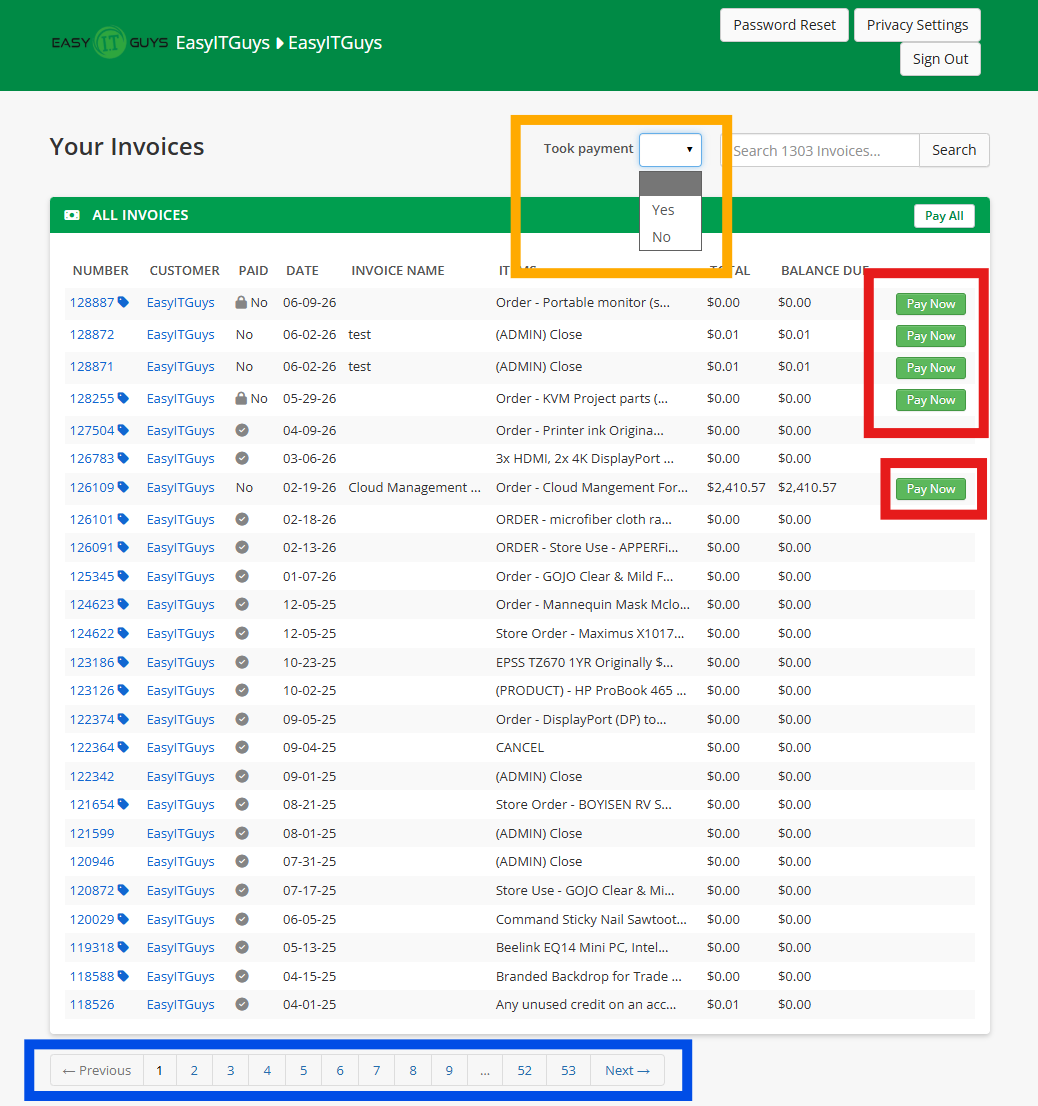
You will see the familiar “pay now” green button links (red box), a new “took payment” filter as a quick way to see “all paid” and “all open” invoices (Yellow box). Lastly, you will see at the bottom, all pages for invoices for your account (Blue box)