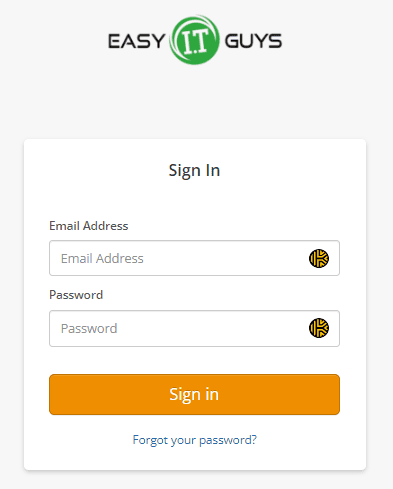
Once your account is setup, please go to your customer portal link. You can login with your email and your password here –> Accounting Portal Note: If you don’t remember your password, please follow the password reset link. go to their customer portal link. Click it.
Once in the portal, look in the Account Overview section. Find “stored payment options” and click “manage”.
On this page, you will see all of your stored and authorized payment methods. Credit cards are marked with “XXXXX” and Bank Accounts are marked with “ECHECK”. NOTE: Both credit cards and bank accounts are labeled as “credit cards”, unfortunately, we cannot change this term in the system at this time which is why we mark the nickname as detailed.
Go back to your “manage” payment methods page to add a credit card. Click the “add a Credit Card” button
Add your credit card information. When done, click the “Store Payment Method” button. After you click this button, your new credit card is instantly saved to your account.
After success, you will be redirected to the main account page with this message “Your Card has been stored!”.
At this time, adding a bank account is only supported through our secure echeck form located here: Add Bank Account (ECHECK)
Fill out the information accordingly. The “red” rectangle MUST match your bank account information (the payment processor uses this information for processing confirmation). The green box must match your account information with EasyITGuys (this is how we find your account).
Once the form is filled out, please click the “submit” button. PLEASE be patient as processing can take up to 60 seconds.
Once processed, you will see the confirmation payment message “Thank you for submitting your EFT/Echeck Authorization Form. We will attach this payment authorization to your account. Thank you!”.
Please note, processing can take up to 72 hours to process during normal operations business hours. (M-F, 8am-4:30pm).