
The EasyITGuys Business Growth Platform gives your organization one place to access the digital tools and services available to grow your business online. If this is your first time signing in, getting started normally takes only a few minutes.
When your account is created, you will receive an email from EasyITGuys with the subject: “Welcome to Business App”. The email includes a green Set your password button and should look similar to this.
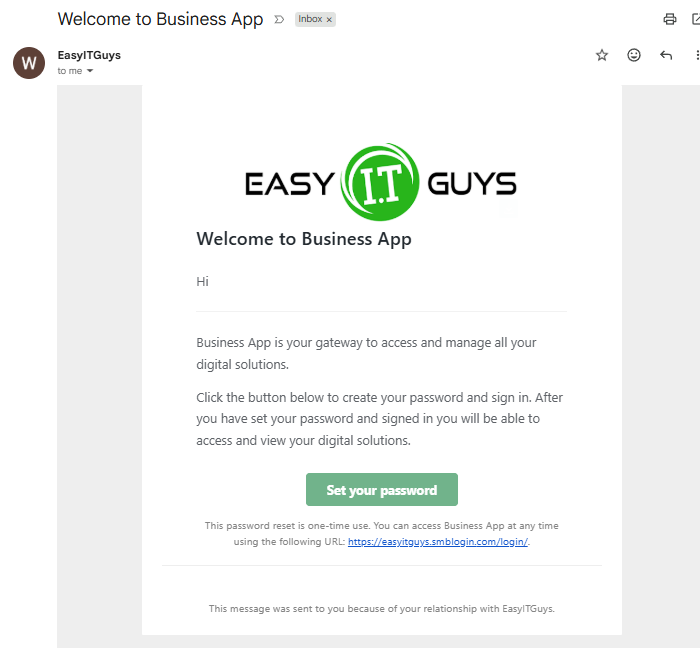
Important: The welcome email may use the name Business App. Business App is the application used to access your Business Growth Platform services.
Open the welcome email and select Set your password. Follow the instructions to create a secure password for your account. This is a one-time setup process. After your password has been created, you can sign in normally without returning to the original welcome email.
Go to the EasyITGuys Business Growth Platform login page: https://easyitguys.smblogin.com/login/
We recommend bookmarking this page if you will use the platform regularly.
Enter:
Select Sign In to open your Business Growth Platform dashboard. Once signed in, you will be greeted with the home screen that connects you to all of your tools.
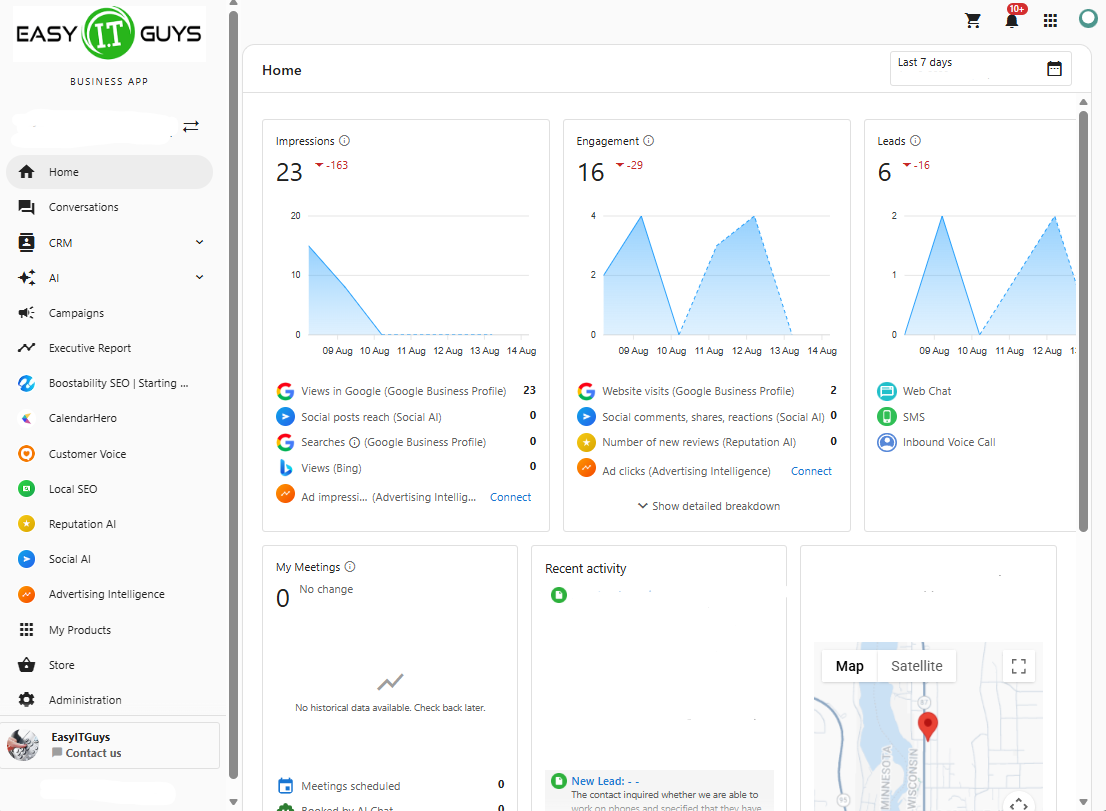
You do not need your welcome email every time you want to use the Business Growth Platform.
For future visits:
If you cannot find your invitation, try these quick checks:
If you still cannot find the welcome email, contact EasyITGuys so we can help verify your access or resend the invitation.
If you have already activated your account but cannot remember your password, go to the Business Growth Platform login page and use the available password reset option. Password reset instructions will be sent to the email address associated with your account.
If you are a web developer or WordPress administrator, you may be accustomed to accessing a website by visiting: yourdomain.com/wp-admin
EasyITGuys intentionally disables direct access to standard WordPress login locations by default as a proactive security layer. If /wp-admin does not display the WordPress login screen, this is normally expected behavior and does not mean the website is broken. Login through the Business Growth Platform login page for the best experience.
Standard WordPress administrative login locations are well known and are frequently targeted by automated login attempts, bots, and other malicious activity. EasyITGuys normally provides website administration through the Business Growth Platform rather than unnecessarily exposing a common administrative login point. Our website security approach also uses protections at the domain and hosting environment levels to help provide strong security while maintaining excellent website performance.
For more information about the security included with your website, see: How is my website protected and what levels of security are included?
Once you can successfully sign in, your initial account setup is complete. The applications, services, reports, and management options available inside the Business Growth Platform will depend on the solutions assigned to your organization and your individual permissions. If you would like to learn how to use the platform and get the most value from the available tools, start here: Business Growth Platform Training
This training provides additional guidance for using the tools available to help manage and grow your business online.
Additional Client University articles are available when you need more detailed information about a specific part of the service:
Tip: You do not need to read all of these articles to get started. Use them as reference material when you have a question or want to learn more about a particular Business Growth Platform feature.


