This page explains what users should do when software is blocked or when a program needs administrator rights. The goal is to keep the process clear, calm, and easy to follow.
Important to know: ThreatLocker does not remove administrator rights you already have. It does not block admin access on its own. If a program needs administrator rights and you do not already have them, ThreatLocker can help you request temporary elevation or software approval more quickly. In many cases, this means you can move forward without opening a separate IT ticket.
|
Most end users only need to remember this
Use the computer normally. If a program needs approval or administrator rights, follow the popup, enter a short reason, add your email address, and wait for approval. If the issue is urgent, call the Support Desk and work with the IT Team.
|
Watch this video as a quick start (~6 minutes) #
How to request access for new software #
- Try to open the installer, update, or program normally.
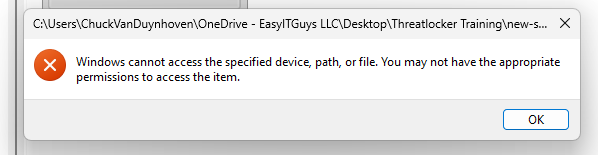
- If ThreatLocker blocks it, click Request Access. Add a short message explaining why the software is needed for work. Add your email address so you can receive updates. Click Send Request and wait for the approval decision.
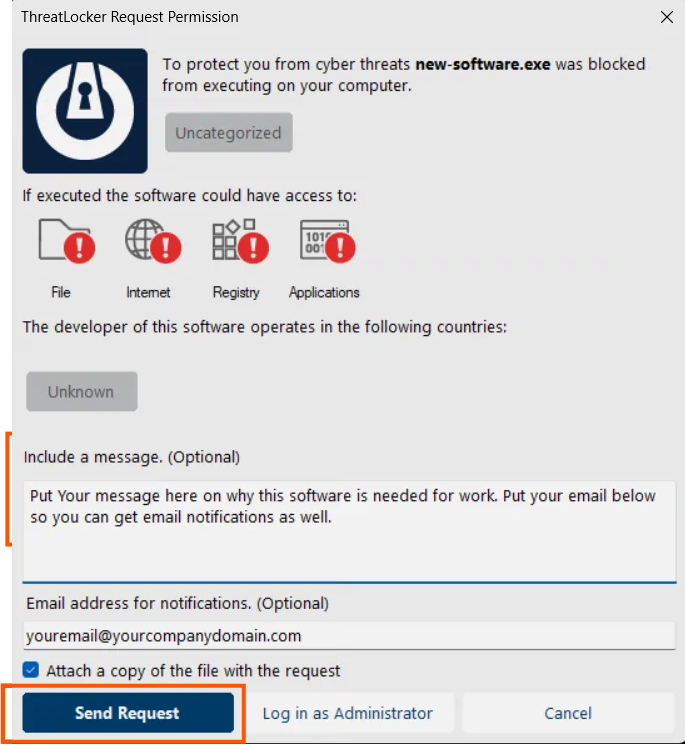
Response times and expectations #
- New software requests are managed & monitored 24x7x365 by the Cybersecurity Team.
- Average response time is about 5 minutes. Some approvals happen in about 1 minute. More unusual requests can take up to 15 minutes.
- Elevation requests and advanced software approvals are typically handled during daytime hours by the IT Team and Cybersecurity Team working together.
- You can use the request popup yourself or call the Support Desk if you want help.
What happens after you send the request #
- If you entered your email address, you may receive status updates while the request is processed.
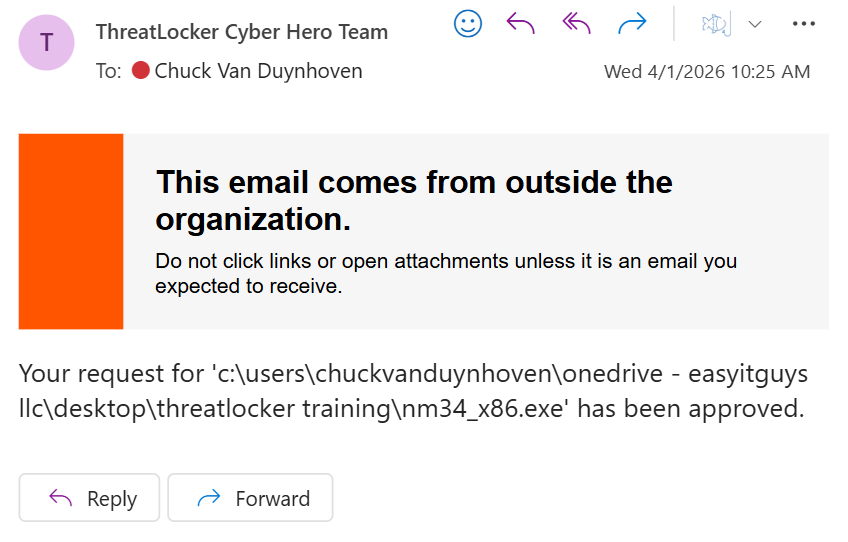
- Once approved, you may click Run Now if that popup appears, or you can simply try the program again later. There is no need to rush. The policy remains in place after approval.

How to request elevation #
ThreatLocker is not removing admin access. It gives standard users a faster way to request temporary elevation when Windows or company policy requires administrator rights. Some software is already approved to run but still needs administrator rights to install, update, or complete a task. In that case, users can request ThreatLocker elevation instead of needing permanent admin access.
- Open the program normally or choose Run as administrator if instructed.
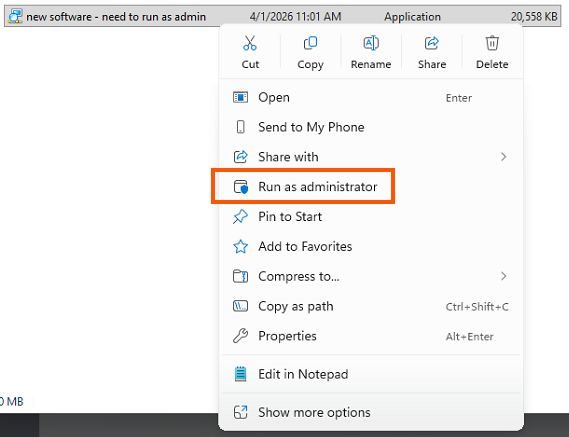 NOTE: If approved admin credentials are available, an authorized admin can use the standard Windows credential path for already trusted software. If not, standard users can request elevation without an admin needing to be directly involved.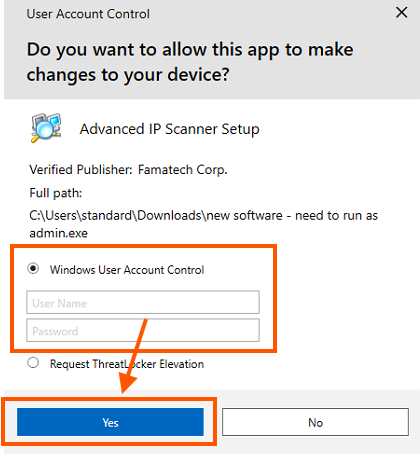
- When the prompt appears, choose Request ThreatLocker Elevation. Add your email address and a short business reason. Click Send Request.
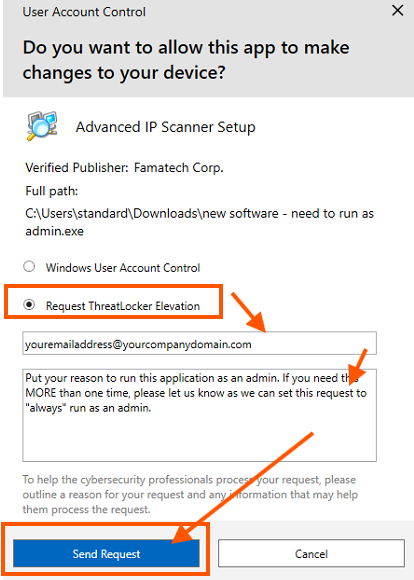
- After approval, run the program again. The elevated action will process normally. If you put in your email, you will see a notification and the popup (at a minimum, you will see the popup).


Helpful right-click tools for users #
Right click the ThreatLocker tray icon to access helpful tools such as Blocked Items and Rapid Check-in.
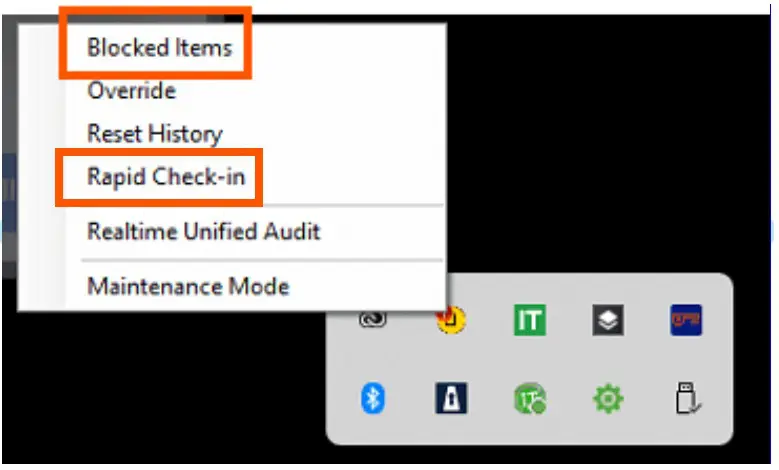
- Rapid Check-in tells the ThreatLocker agent on the device to check for updates faster. It does not make the Cybersecurity Team review faster, but it can help the computer receive a decision faster after one has already been made.
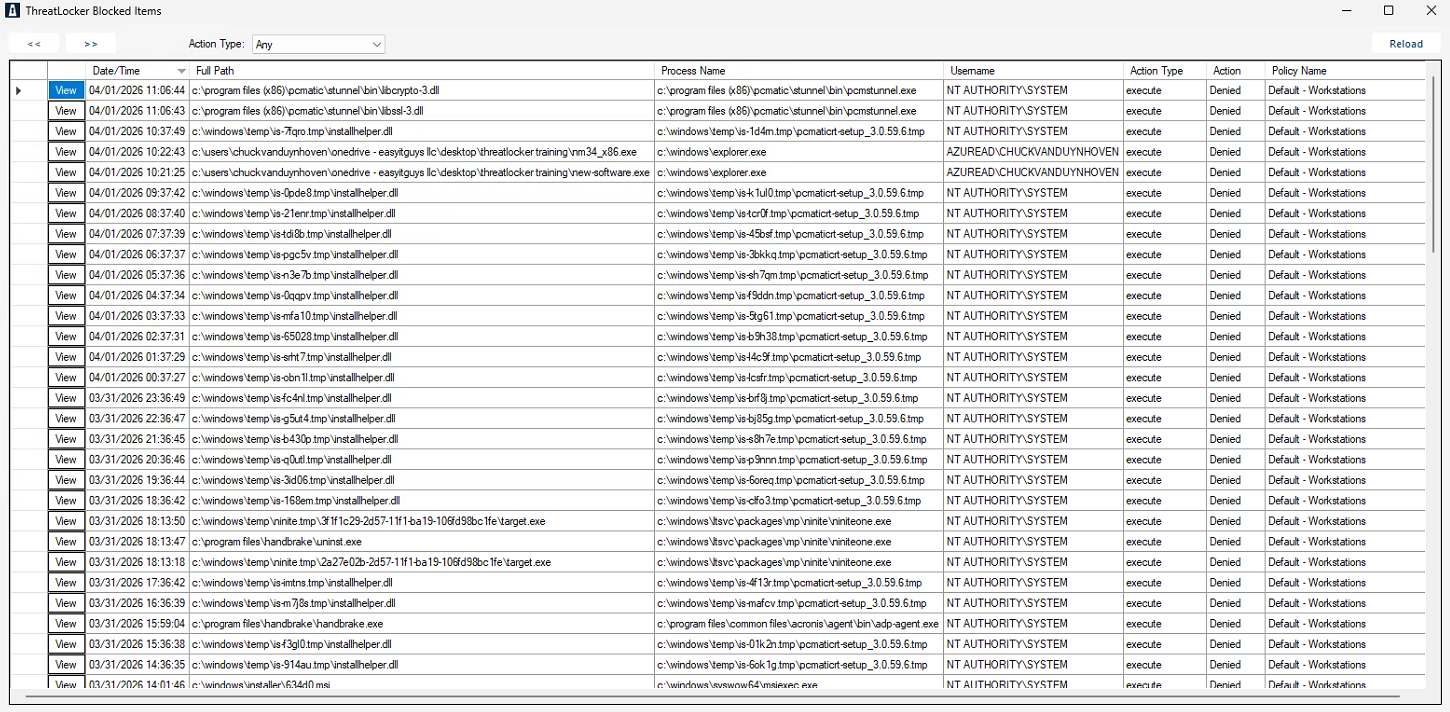
- Blocked Items shows what was denied and can help confirm whether your request is still pending.
What not to do #
- Do not keep submitting the same request over and over.
- Do not repeatedly retry the application while the request is still pending.
- Do not ask coworkers to bypass the process.
- Do not assume blocked means broken. In many cases it simply means review is still in progress.
|
If something is blocked, the normal process is to request access, add a reason, add an email, and wait for approval. When in doubt, call the Support Desk and work with the IT Team.
|
Source: End User’s Guide to ThreatLocker Request Popups
Trusted by these organizations & 50K more worldwide
Across 3+ million devices #