
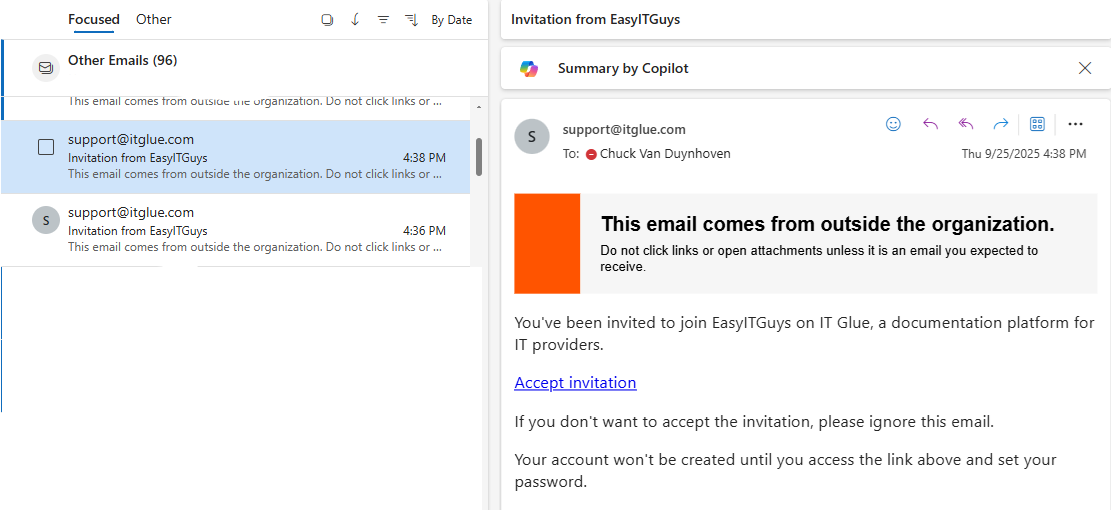
First-time setup, MFA, MFA recovery token, portal tour, and daily login. You must create your password before you can log in.
Quick Links:
IT Documentation Portal: https://easyitguys.itglue.com/
Reset Password: https://easyitguys.itglue.com/password/new
PDF Version: IT Documentation Portal Guide (V1)
Your work email address.
An authenticator app. Microsoft Authenticator or another supported Authenticator (DUO Security or Keeper Security Password Manager).
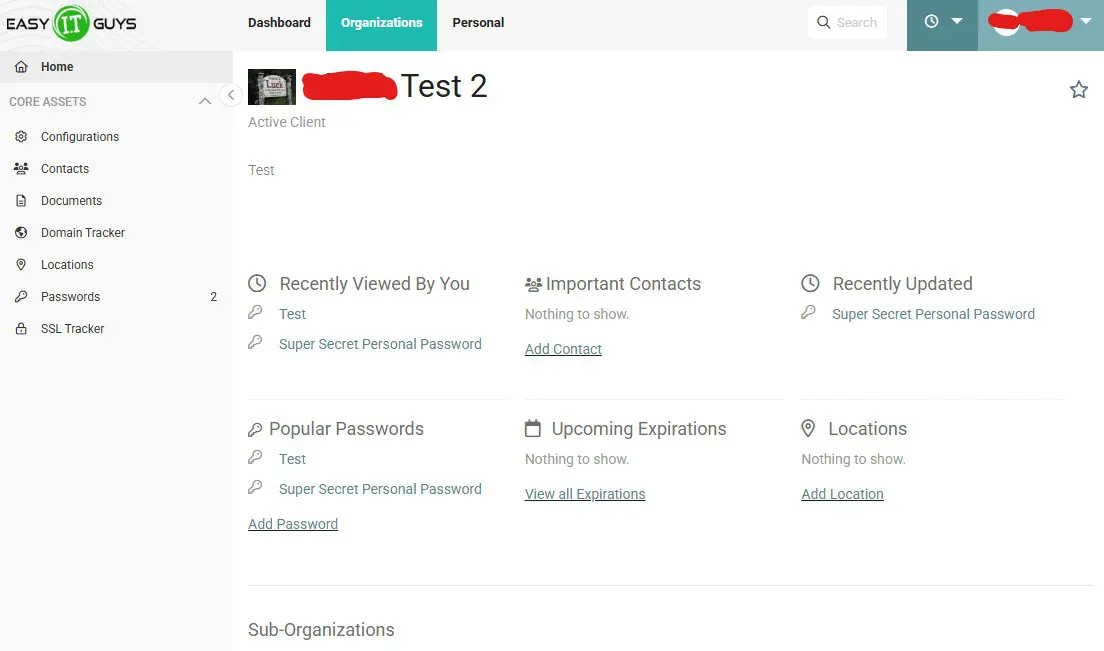
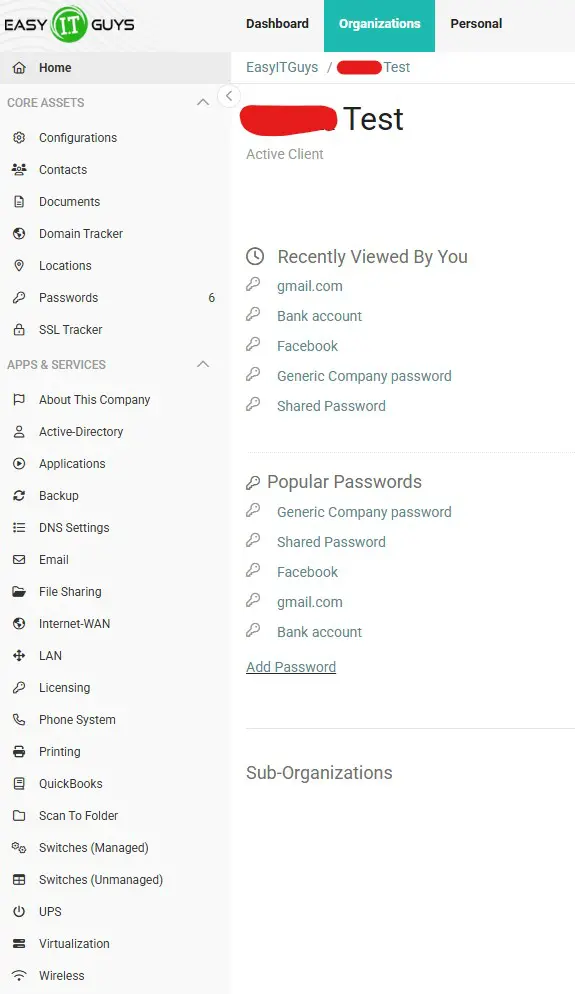
See company devices (Configurations), staff (Contacts), domains, locations, and other documentation.
Use Passwords for personal passwords (private to you) or shared credentials for teams or IT.
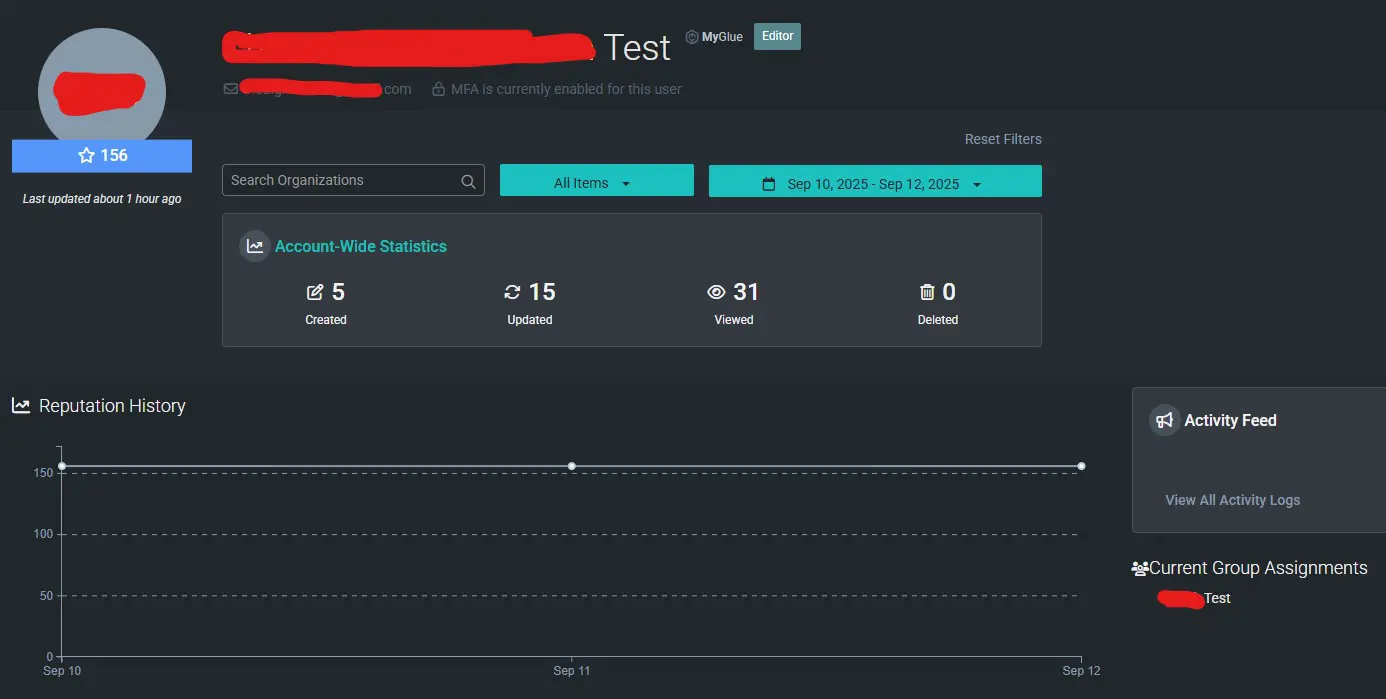
Add and update documentation items. Everything is audited. Participation is tracked.
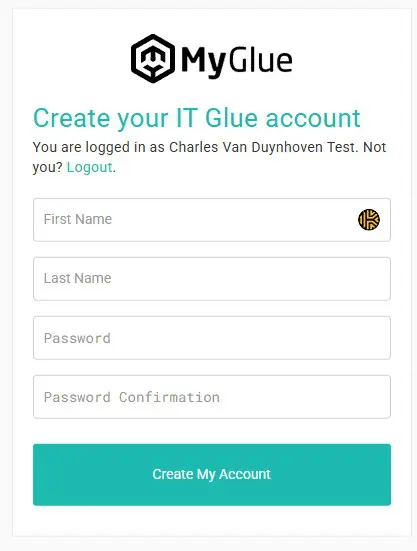
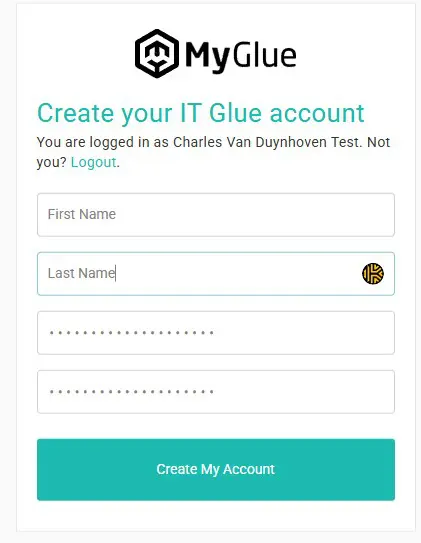
Fill out name and password, click Create My Account
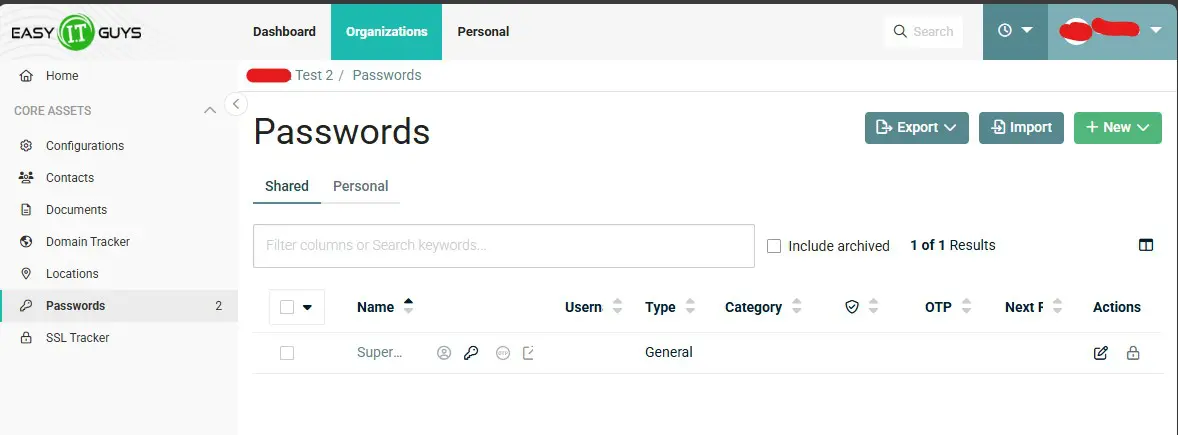
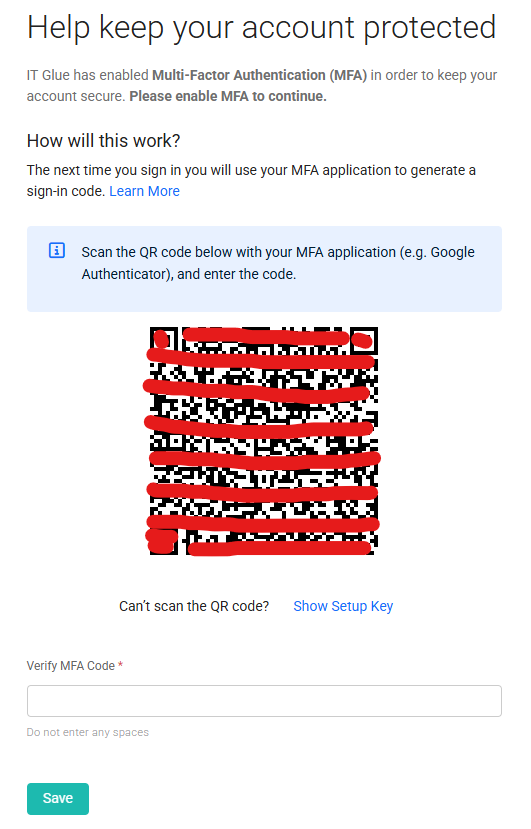
Note: If your organization’s account is older than 30 days in the system, MFA is on by default for all users. If less than 30 days, MFA may be off temporarily to improve adoption and login success. We HIGHLY recommend to setup this on your own before 30 days is past.

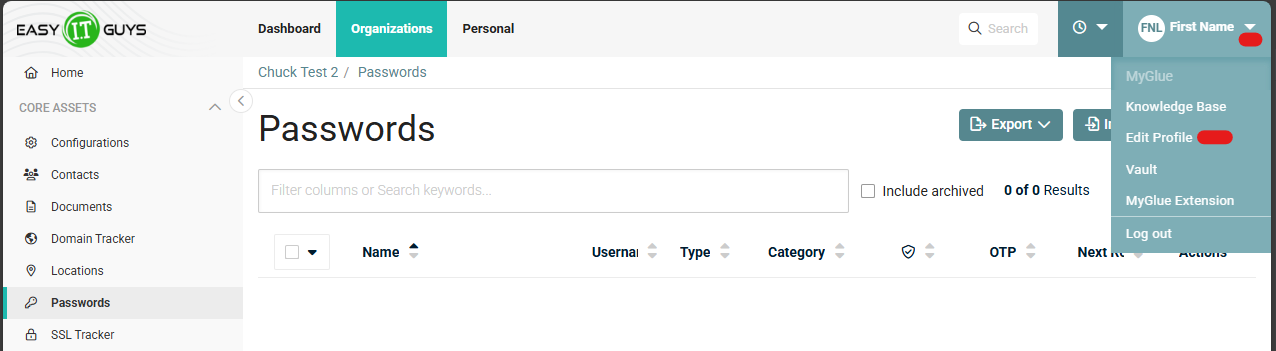
Click the dropdown arrow in the top right, click edit profile
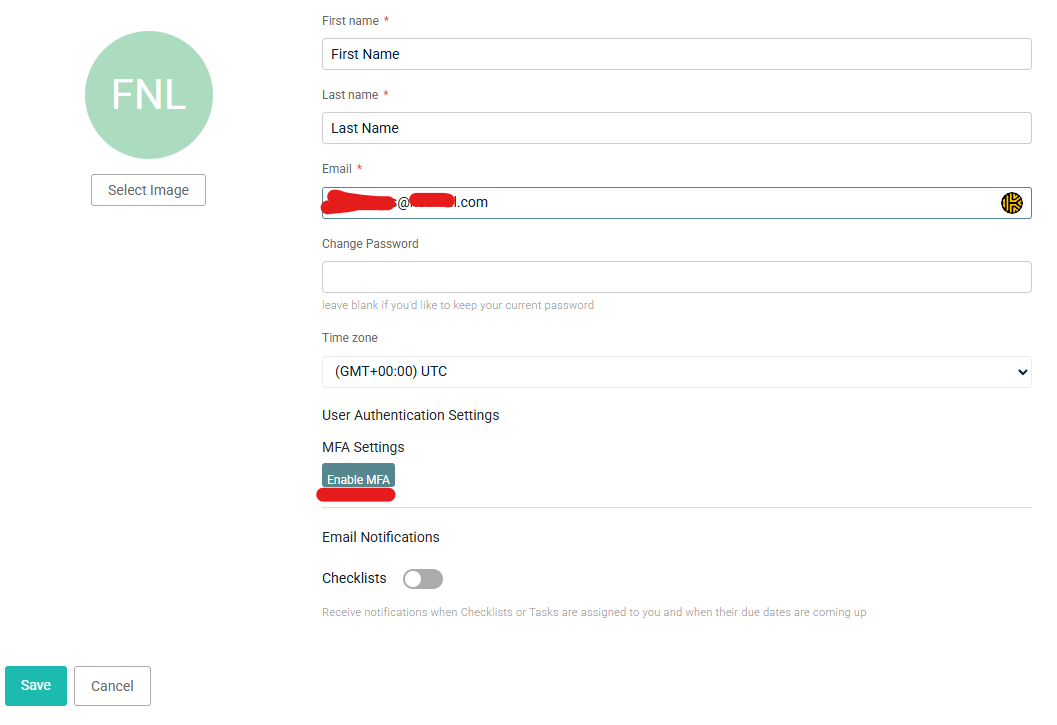

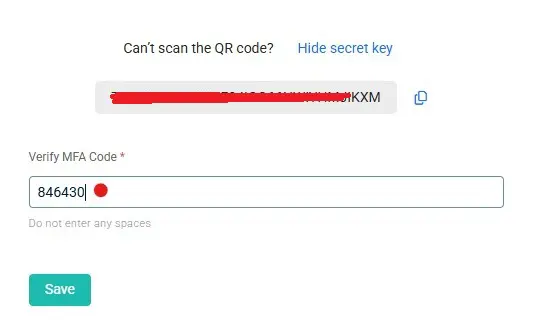
Tip: If you ever lose your phone or MFA code, this token lets you sign in once to reset MFA without IT involvement.
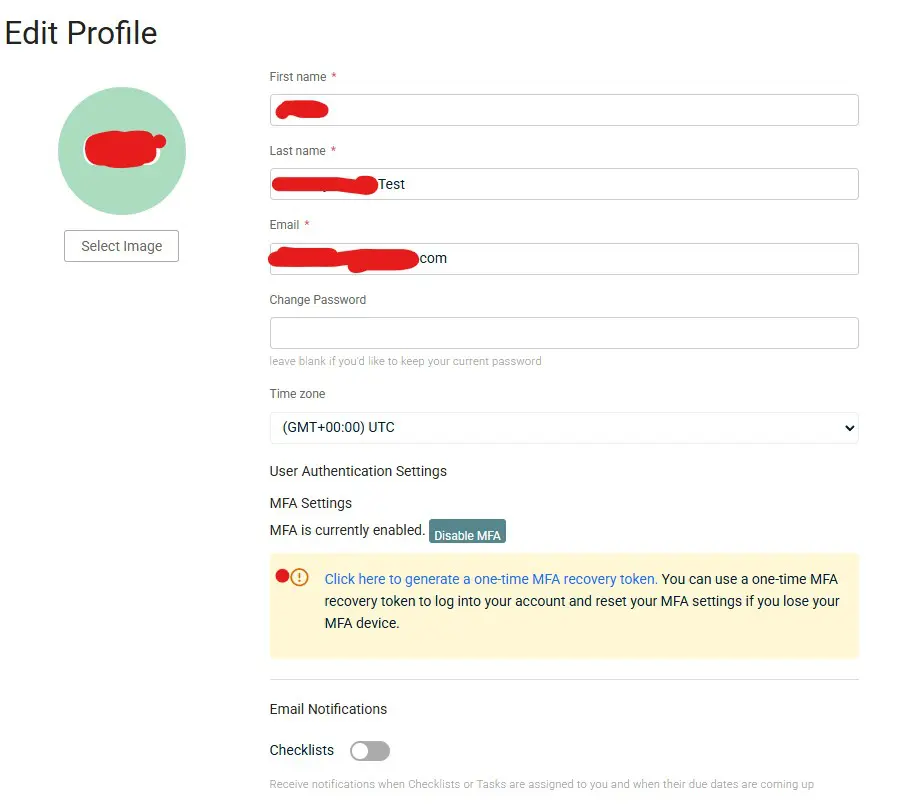
In Profile, click the link to generate a one-time MFA recovery token.
I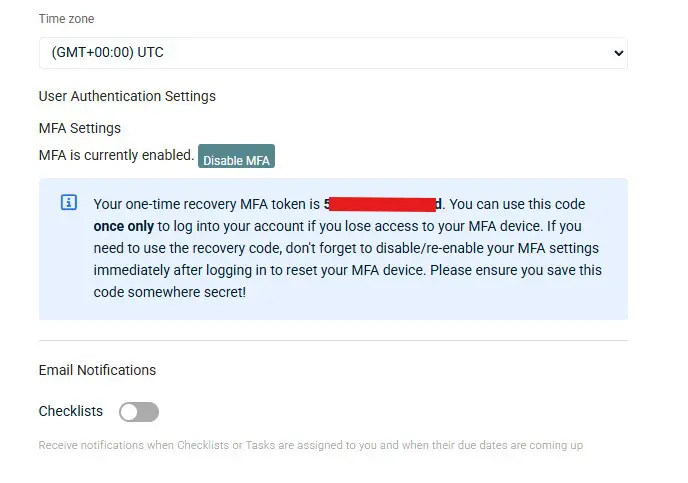
Store this token in your password manager or save it to a document on your device. Keep it secret.

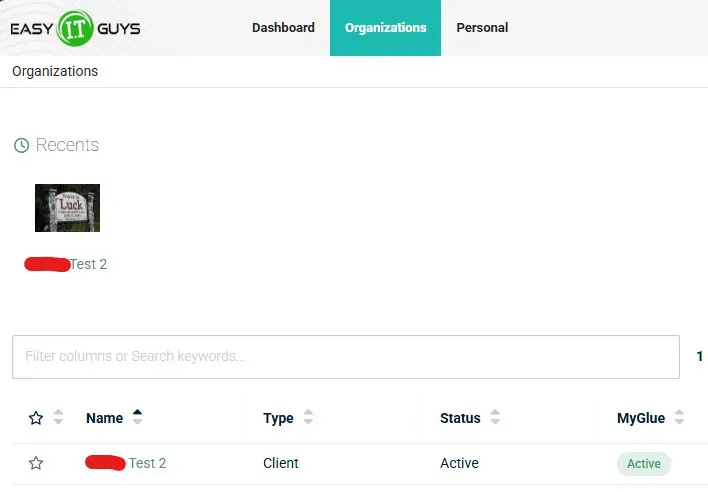
Start here: Bookmark your login link
 Step 1: Access the Portal #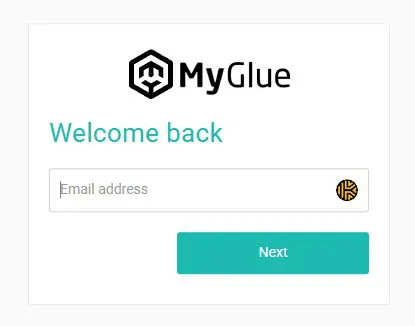

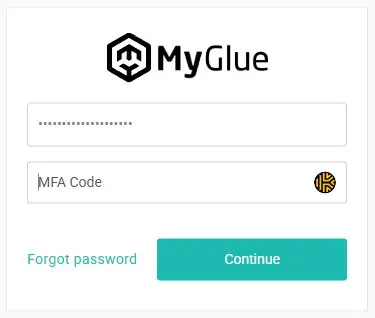
Open your authenticator app. Enter the MFA code. Click Continue.
CONGRATS! You’ve successfully logged in!
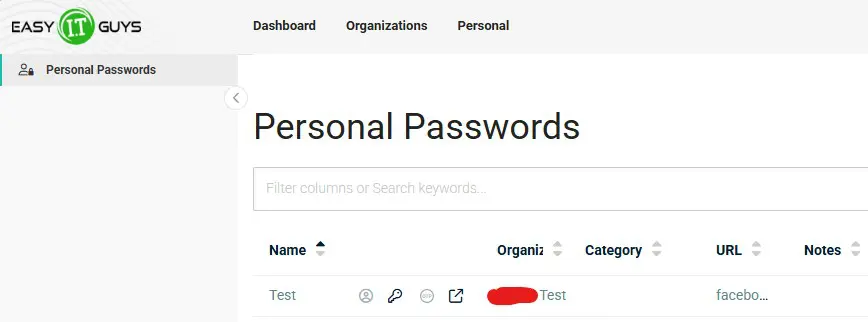
Personal passwords are visible only to you.
Shared passwords are visible to the groups you select or to IT. Use shared for team accounts and infrastructure credentials.
No reset email. Check spam. Search for support@itglue.com. Request a new link at https://easyitguys.itglue.com/password/new
Reset link expired. Request a new link from the same page.
MFA code not accepted. Set your phone time to automatic. Use a fresh 6-digit code.
Lost phone. Use your one-time recovery token to sign in once. If you didn’t save this, contact the support desk to disable and re-enable MFA.
Start here: https://easyitguys.itglue.com/password/new
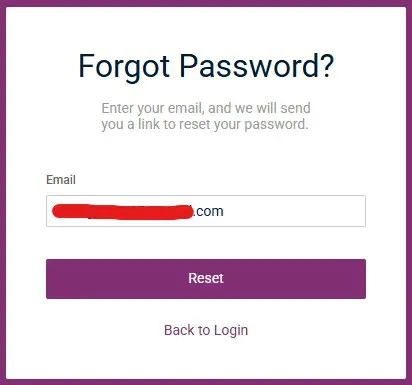
Enter your work email. Click Reset.
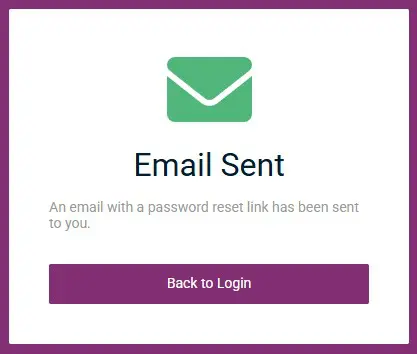
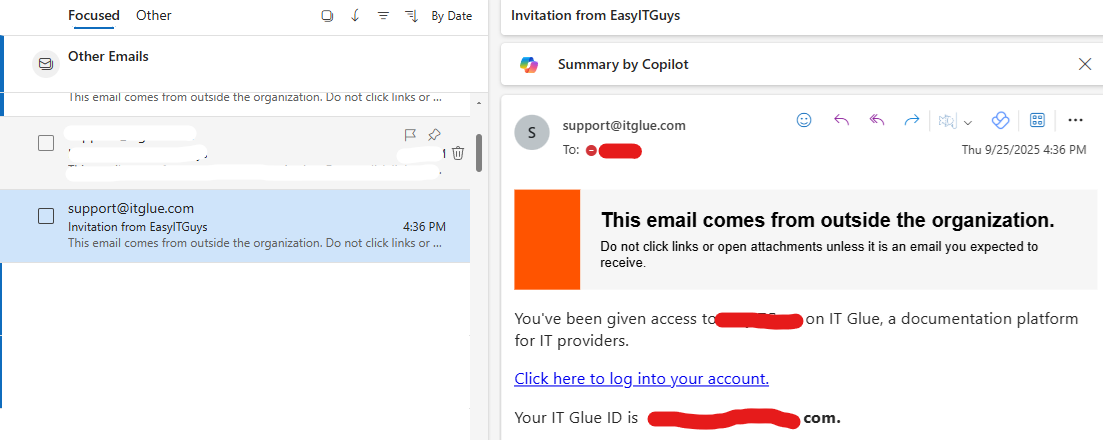
Login to your email and find this email. Give it 1-2 minutes to arrive.
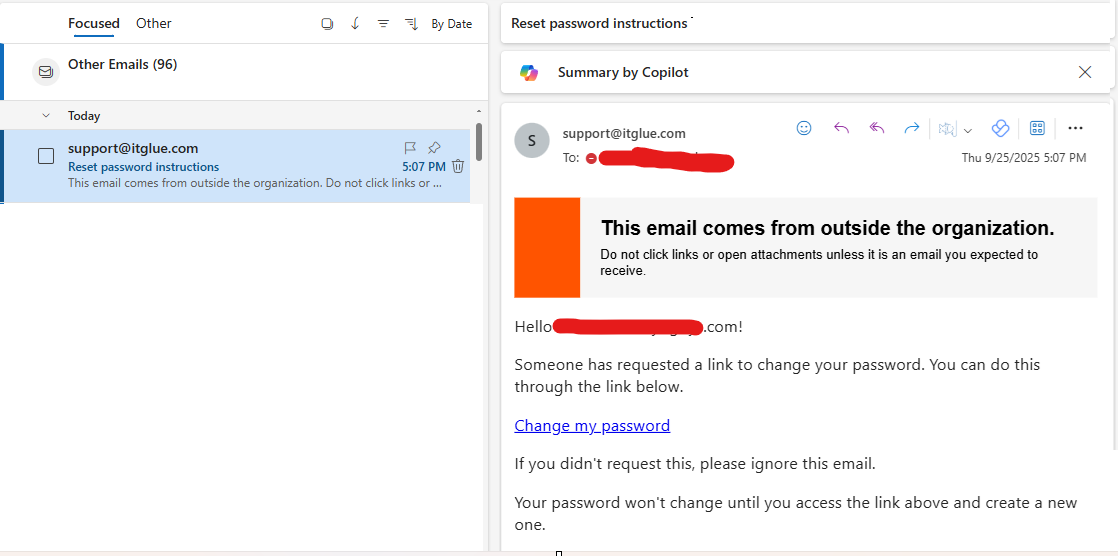
Open the email from support@itglue.com. Click Change my password.
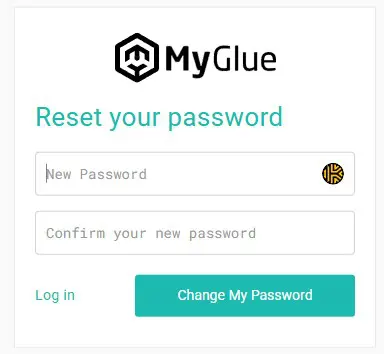
Enter and confirm a strong password that you will remember (write this down or put it somewhere safe such as a password manager)
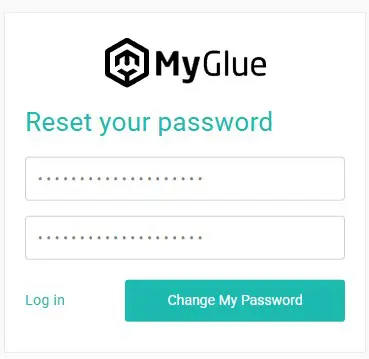
Your password is now masked, click the change my password button
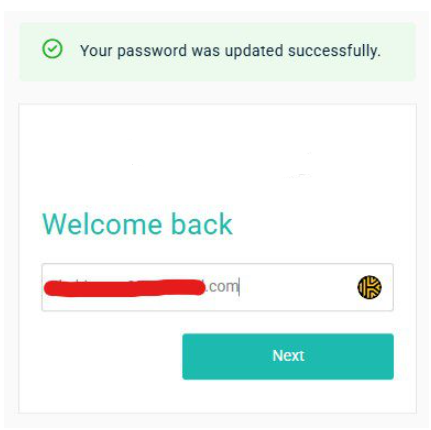
Success message appears. Insert your email. Click Next
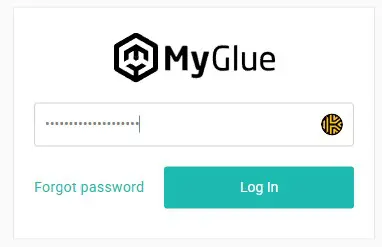
Enter your new password and click Log In
Enter your MFA and click Continue.
Contact the Support Desk. Include your company name and a screenshot of the page where you are stuck.
A dedicated password manager is faster, easier, and more secure than storing most passwords in the documentation portal. The IT Documentation portal is great for IT infrastructure credentials and shared technical notes. A password manager is meant for every password you use.
Works everywhere. Use a browser extension, a desktop app, a mobile app, or a web vault. Autofill and capture new logins with one click.
Creates strong passwords. Built-in generators create long, unique passwords for every site.
Saves time. Autofill reduces login friction and cut-and-paste errors.
Keeps personal and work items separate. Personal vaults stay private. Shared vaults handle team accounts with permissions.
Centralized sharing. Give access to a team or role without emailing passwords. Revoke access instantly when someone changes teams.
Audits and reports. See weak, reused, or old passwords. Track items that need rotation.
Strong security. End-to-end encryption, MFA, role-based access, and detailed audit logs.
Modern password managers include continuous breach monitoring features. These services:
Check your saved usernames and domains against known breach data.
Alert you when a site you use has been compromised.
Flag reused, weak, or old passwords.
Recommend actions, such as “change this password now” or “enable MFA.”
This reduces one of the highest risks in IT: breached or simple passwords that are easy to guess.
Keep infrastructure and shared IT credentials in the portal so IT can audit and reference them with related documentation.
Keep all personal and everyday website passwords in the password manager for speed and convenience.
Store MFA one-time codes where you manage that specific login. Many password managers can store OTP codes alongside the password if your policy allows it.
Use the Web vault (easy, slow), install the desktop application (easy, slow), install the mobile app (moderate, fast) or browser extension (hard, fast)
Turn on MFA for your password manager account.
Create strong passwords using the password generator as you log in to sites. Save each one to the vault.
Watch for password and login breaches. Review and fix any alerts.
Use shared folders or collections for team accounts. Do not email passwords.
Review your security report weekly and rotate any weak or reused passwords.
Set the expectation that staff utilize a password manager to secure, monitor, and store company credentials.
Require MFA for all users.
Require breach monitoring and periodic security reviews.
Use role-based access and shared folders aligned to teams
Bottom line: Use the documentation portal for IT-centric credentials and reference. Use a dedicated password manager for everything else. This combination gives you speed for daily work and strong controls for cybersecurity.


