This page is intended for IT staff, partners, technical owners, and approved contacts who require operational workflow details. ThreatLocker functions as both a security and change control tool, enhancing security, predictability, and auditability. Depending on your role, some staff can help with elevation requests or administrative actions but cannot approve new software or updates. In these cases, IT staff collaborates with the Cybersecurity/Elevation Team to review & approve new software.
| Default approval philosophy
New software and never-before-seen updates should usually be approved at the device level first. Expand the scope only after validation and business confirmation. Elevation can be made persistent when safe and appropriate, but it should still be intentional. If an application requires repeated approvals, it will need special rules applied (contact the escalation team) |
How approvals should be reviewed #
- Application control governs what is allowed to execute.
- Elevation control governs what is allowed to run with administrator rights.
- If software has never been seen before, approval should be scoped to the specific device unless broader use is clearly justified and reviewed.
- If software is already approved and only elevation is needed, the fastest path is often to use approved credentials or a managed elevation policy.
What local admin can and cannot do #
If the software is already approved, an authorized admin can often enter credentials into the Windows User Account Control prompt and complete the action.
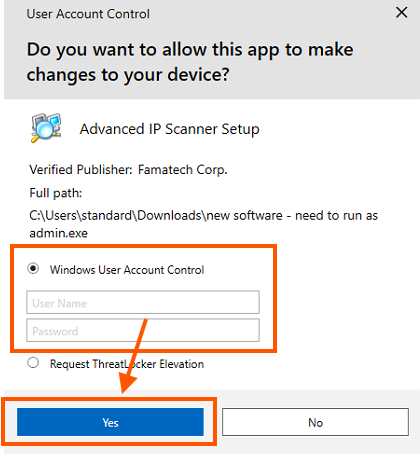
If the software has never been seen before, local admin rights does not grant permission to bypass review. That design is one of the strongest protections ThreatLocker provides as cyberattacks often start with privileged users.
Operational workflow for support and IT teams #
- Software requests are handled 24x7x365 by the Cybersecurity Team.
- Average response is about 5 minutes, with some requests completed in about 1 minute and more unusual items taking longer (15 minutes max).
- Support desk grants elevation if called; otherwise, advanced requests and end user elevation requests are handled by the escalation team (daytime)
- Repeated manual approvals signal that a customer policy should be created.
- There are always exceptions to the rules. If something isn’t working, contact the escalation team to create custom policies to avoid end user frustrations.
Useful right-click tools for staff #
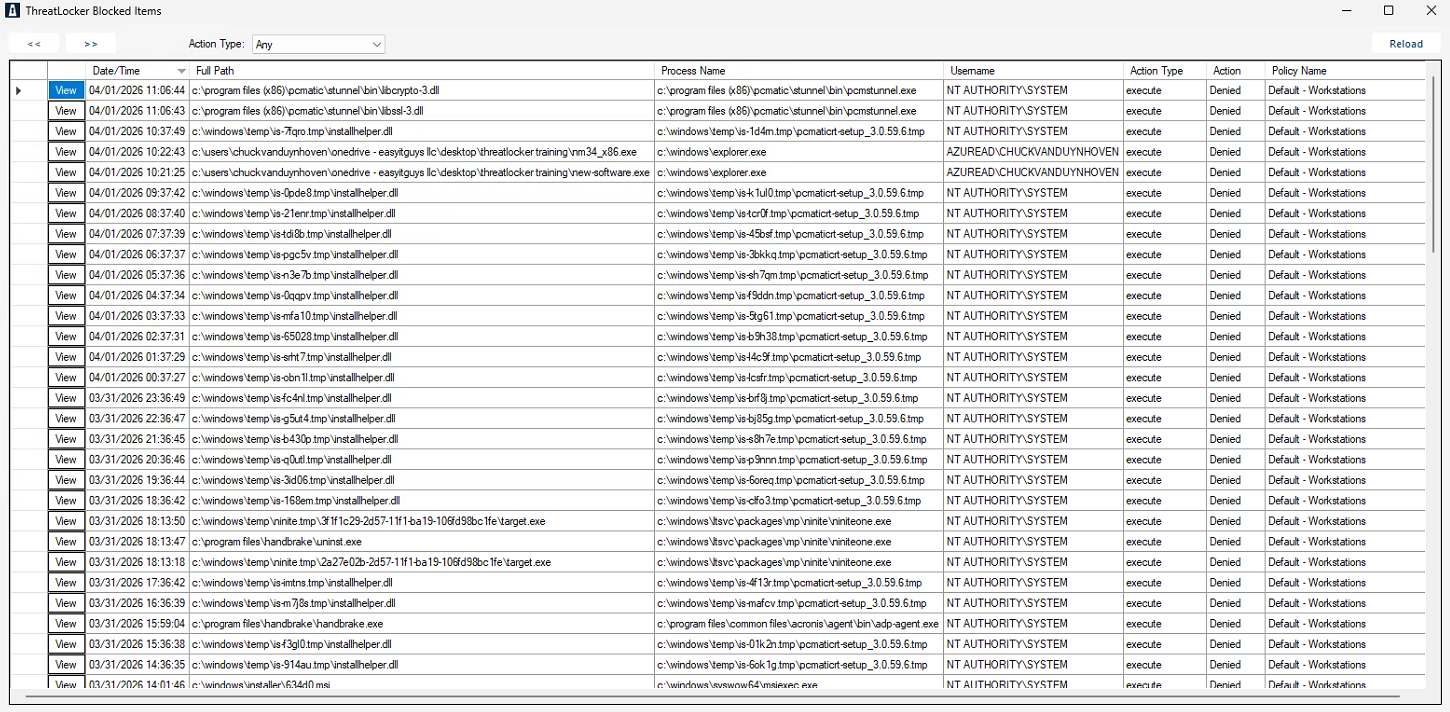
- Blocked Items should be one of the first troubleshooting steps. The blocked items window details all denials.
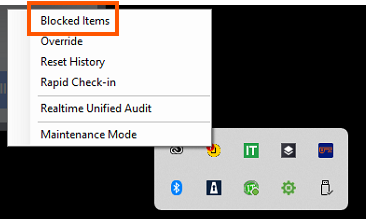
- Rapid Check-in can help deliver a recent policy decision faster.
- Realtime Unified Audit is valuable for deeper review of approvals, denials, and advanced activity.
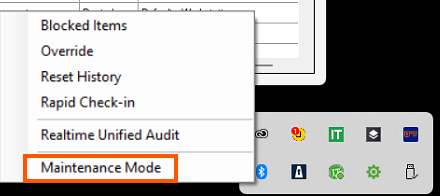
- Maintenance mode is ideal for field staff using the mobile app for quick access and approvals. Maintenance Mode is available from the right-click tray menu for authorized technical staff and can be quickly accessed by scanning the QR code with a device that has ThreatLocker access.

What not to do #
- Do not broadly approve unknown software without review.
- Do not assume local admin rights alone make software safe.
- Do not use Maintenance Mode as a shortcut when a scoped policy is the better answer.
- Do not skip documentation, audit trail, or business justification for recurring approvals.
- Do not expand device-level approvals to company-wide approvals until validation is complete.
| ThreatLocker is effective because it controls what is allowed to happen before it becomes a problem. The goal is not to slow down the business. The goal is to let safe work happen quickly, document it properly, and reduce downtime, security incidents, and messy IT. |
Discover more from EasyITGuys #
Subscribe to get the latest posts sent to your email.